

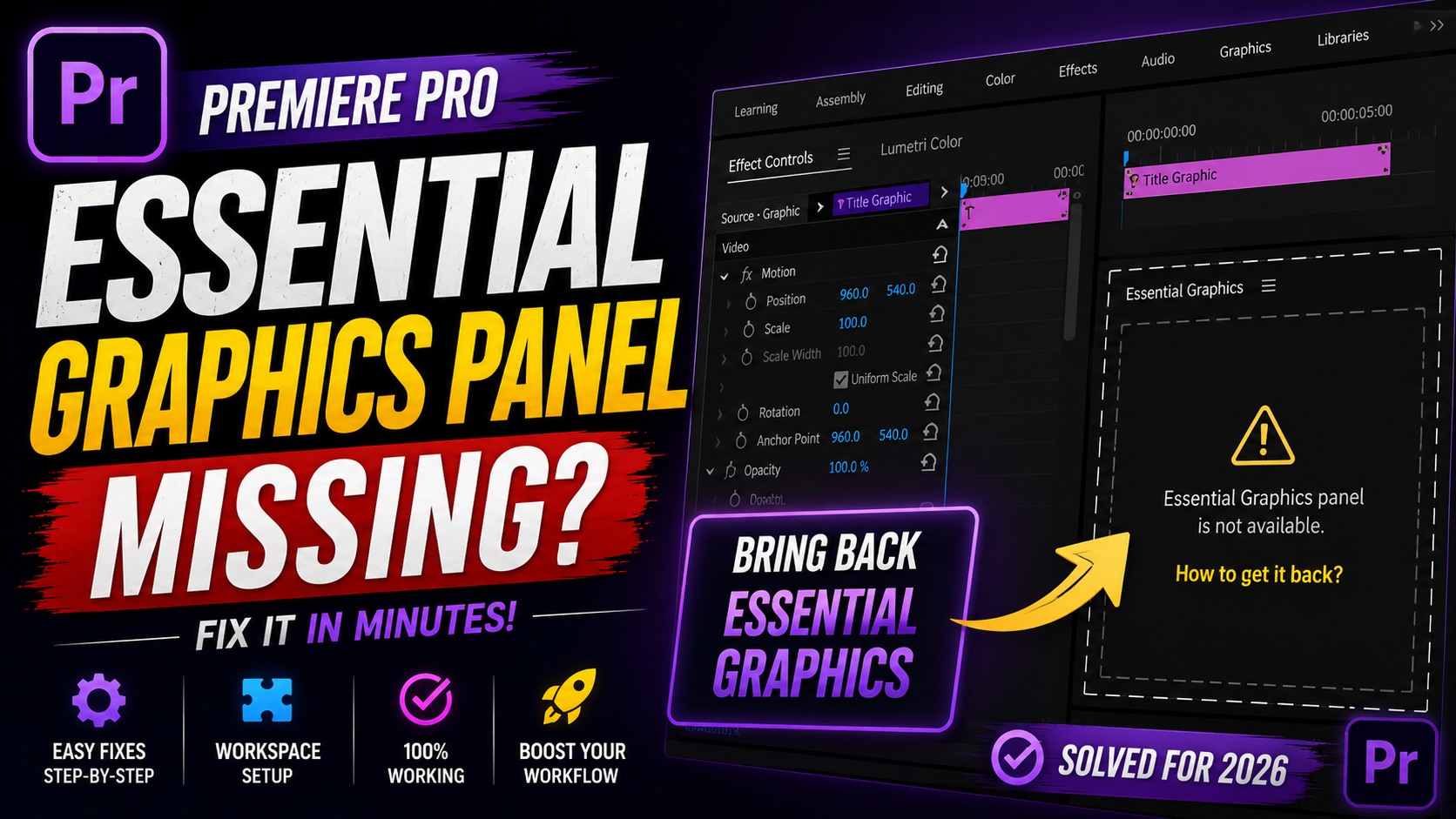

If you opened Premiere Pro recently and went looking for the Essential Graphics panel, only to find it’s nowhere to be seen, you’re not losing your mind and you haven’t broken your installation. Adobe actually removed it. For editors who built years of muscle memory around that exact panel, that’s a genuinely disruptive change, and a lot of tutorials floating around online still reference a tool that no longer exists in current versions.
This guide explains what happened to the Essential Graphics panel, what replaced it, how the new workflow compares, and how to get your old habits working again with minimal friction.
What Was the Essential Graphics Panel?
Introduced back in Premiere Pro version 11.1 in 2017, the Essential Graphics panel served as the central hub for text and graphics work inside Premiere. It handled styling text (font, size, color, alignment), basic animation controls, and Motion Graphics Template (MOGRT) management, all from a single panel accessible through Window > Essential Graphics.
For nearly a decade, it was the default starting point for anyone adding titles, lower thirds, or graphic overlays to a project, which is exactly why so many existing tutorials, courses, and muscle-memory workflows are built around it.
Why Did Adobe Remove Essential Graphics?
Starting with version 25.0, Adobe officially phased out the Essential Graphics panel, splitting its responsibilities across two more focused panels instead. The move reflects a broader pattern in Premiere Pro’s recent updates, favoring purpose-built, context-aware panels over single, do-everything interfaces.
Rather than one panel trying to handle styling, animation, and template browsing simultaneously, Adobe separated those functions to make each one more efficient on its own, particularly as text and graphics workflows have grown more complex with newer features.
What Replaced Essential Graphics: The New Panel Structure:
The Properties Panel:
This now handles text styling, positioning, and font selection. Select a text layer, open Window > Properties, and you’ll find the same core adjustments the old Essential Graphics panel offered, font, size, color, alignment, presented in a cleaner, context-aware layout that adjusts based on what’s selected.
The Graphics Templates Panel:
MOGRT browsing and management moved here. Open Window > Graphics Templates to browse, import, and apply Motion Graphics Templates, the same core functionality the old panel’s Browse tab handled, just in its own dedicated space now.
Where Animation Still Lives:
Animation itself, keyframing position, scale, opacity, and rotation, was never fully housed in Essential Graphics to begin with. That still happens in the Effect Controls panel, the same place used to animate ordinary video clips, so this part of the workflow is largely unchanged.
How to Find Essential Graphics Features in 2026:
If you’re used to the old panel, here’s a direct mapping to help you adjust faster:
Need to change a font or text color? Go to Window > Properties.
Need to browse or apply a MOGRT? Go to Window > Graphics Templates.
Need to animate a text property? Go to Effect Controls, same as always.
Working on a legacy or older Premiere Pro version? The original Essential Graphics panel is still available under Window > Essential Graphics, since only current versions have removed it.
Migrating Your Old Workflow to the New Panels
Update Your Muscle Memory First
The biggest adjustment isn’t functionality, it’s habit. Spend a project or two deliberately reaching for Properties and Graphics Templates instead of searching for the old panel, and the new locations will start to feel automatic.
Re-Save Frequently Used MOGRTs:
If you had custom Motion Graphics Templates built around the old panel’s workflow, they still function normally, since MOGRTs themselves weren’t restructured, only the panel used to browse and apply them.
Update Any Team Documentation or Training Materials:
If you work with a team or have internal onboarding guides referencing Essential Graphics by name, it’s worth updating those now, since new team members following outdated instructions will hit the same “where did it go” confusion.
Is the New System Actually Better?
Reactions to the change have been mixed, which is common with any workflow shift after years of consistency. The context-aware Properties panel does reduce some unnecessary menu navigation, since it adjusts based on what’s currently selected rather than showing a fixed set of controls regardless of context. Splitting MOGRT browsing into its own dedicated panel also gives more room to browse templates without competing for space with text styling controls.
That said, editors deeply used to the old single-panel workflow understandably need an adjustment period, and it’s a legitimate frustration if you’re mid-project and suddenly can’t find a tool you rely on daily.
Frequently Asked Questions:
Where did the Essential Graphics panel go in Premiere Pro? Adobe removed it starting with version 25.0, replacing its functions with the Properties panel (text styling) and the Graphics Templates panel (MOGRT browsing).
Can I still access the Essential Graphics panel? Only on legacy or older versions of Premiere Pro that haven’t been updated past version 25.0. Current installations use the new Properties and Graphics Templates panels instead.
Do my old Motion Graphics Templates still work without Essential Graphics? Yes. MOGRTs themselves weren’t changed, only the panel used to browse and apply them. Existing templates continue to function normally through the new Graphics Templates panel.
Where do I style text now that Essential Graphics is gone? Select your text layer and open Window > Properties, which handles font, size, color, and alignment adjustments that used to live in Essential Graphics.
Is text animation affected by the removal of Essential Graphics? No. Animation for text properties like position, scale, and opacity still happens through the Effect Controls panel, which wasn’t changed by this update.
Final Thoughts:
Losing a familiar panel after years of muscle memory is genuinely disruptive, even when the underlying functionality hasn’t actually disappeared. The good news is that everything the Essential Graphics panel used to do still exists, just reorganized across the Properties and Graphics Templates panels, with animation continuing to live in the same Effect Controls panel as before.
Give yourself one project to deliberately practice the new panel locations instead of hunting for the old one, and the adjustment will likely take less time than it feels like right now.
Leave a Reply