

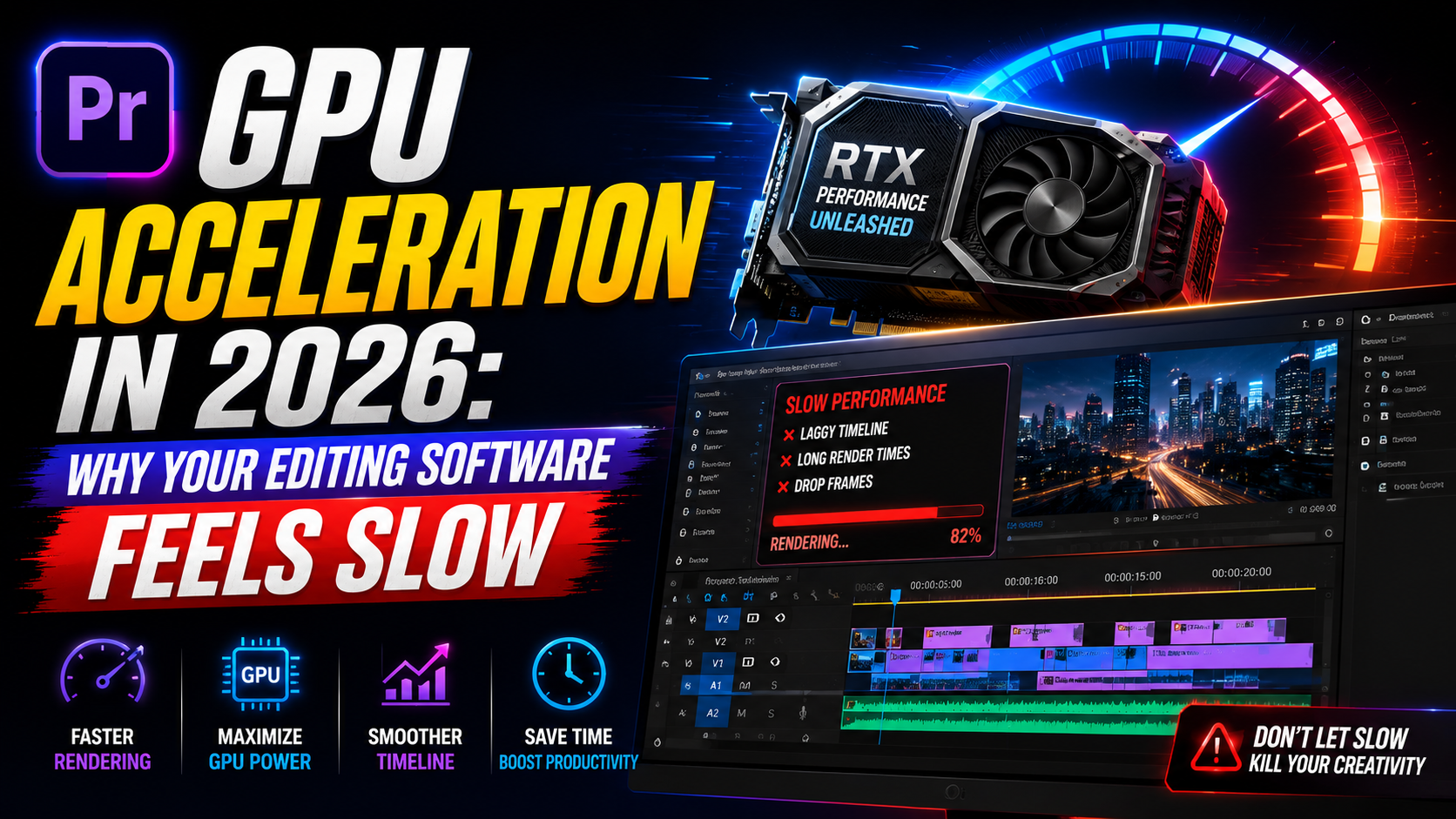

GPU Acceleration in 2026:
If scrubbing through a 4K timeline feels like watching a slideshow, or exports take twice as long as they should, the problem usually isn’t your editing skills, it’s your GPU sitting idle while your CPU struggles to carry the entire workload alone. That’s what GPU acceleration is designed to fix, and understanding how it actually works makes the difference between a smooth editing session and a frustrating one.
This guide breaks down what GPU acceleration means, how it works inside video editing software like Premiere Pro, how to make sure it’s actually enabled, and what kind of graphics card genuinely moves the needle in 2026.
What Is GPU Acceleration?
GPU acceleration means offloading certain processing tasks from your computer’s CPU to its graphics card (GPU), which is built to handle many calculations in parallel far more efficiently than a CPU handling the same work sequentially. In video editing specifically, this covers tasks like real-time effects playback, color grading, scaling, and portions of the export process.
Not every task benefits from this. Simple cutting, trimming, and basic audio edits remain CPU-bound regardless of how powerful your graphics card is, since those operations don’t parallelize the same way rendering-heavy tasks do.
How GPU Acceleration Works in Premiere Pro:
The Mercury Playback Engine:
Adobe’s Mercury Playback Engine is the system responsible for GPU acceleration inside Premiere Pro. It determines how much of your project’s processing runs on the GPU versus falling back to the CPU, and which specific acceleration technology it uses depends on your hardware.
CUDA, OpenCL, and Metal Explained
CUDA — NVIDIA’s proprietary acceleration technology, generally offering the widest support for hardware-accelerated effects on Windows.
OpenCL — Used by AMD graphics cards, with noticeably improved support on newer RDNA3-based cards compared to older AMD hardware.
Metal — Apple’s acceleration framework, used on Mac systems, including Apple Silicon chips.
Premiere Pro automatically selects the appropriate option based on your installed hardware, though it’s worth confirming the correct renderer is actually selected rather than assuming it’s set by default.
How to Enable GPU Acceleration in Premiere Pro:
Step 1: Open Project Settings
Go to File > Project Settings > General.
Step 2: Locate Rendering and Playback
Under the “Rendering & Playback” section, click the renderer dropdown menu.
Step 3: Select Mercury Playback Engine GPU Acceleration
Choose the option matching your hardware, CUDA, OpenCL, or Metal, depending on your graphics card and operating system.
Step 4: Check Media Encoder Separately
If you export through Adobe Media Encoder rather than directly from Premiere, verify its renderer setting independently under Edit > Preferences > General > Video Rendering, since it doesn’t automatically inherit Premiere’s setting.
Why GPU Acceleration Might Not Be Working:
Outdated Graphics Drivers:
This is the most common culprit. Download the latest drivers directly from your GPU manufacturer’s website rather than relying on drivers bundled with Windows updates, then restart your computer before reopening Premiere.
Wrong Driver Type on NVIDIA Cards:
NVIDIA offers two driver types: Game Ready Drivers, optimized for gaming performance, and Studio Drivers, validated specifically for creative applications like Premiere Pro. Studio Drivers tend to offer more stability during long editing sessions.
Insufficient VRAM:
Premiere Pro requires a GPU with at least 4GB of VRAM, with 8GB recommended for comfortable 4K editing. If your VRAM is too low for your project’s demands, using GPU acceleration can occasionally slow things down rather than speed them up.
GPU Acceleration Option Missing Entirely:
If the GPU acceleration option doesn’t appear in the renderer dropdown at all, it usually points to an incompatible or outdated graphics card, or drivers that need a full clean reinstall rather than a simple update.
For 4K Editing and Color Grading:
A well-optimized NVIDIA RTX 4070 Ti class card handles real-time 4K color grading with multiple LUTs comfortably, while significantly weaker cards can start dropping frames under the same workload.
For Faster Exports:
Modern NVIDIA cards with a built-in NVENC encoder speed up H.264 and HEVC exports substantially compared to CPU-only encoding, based on independent benchmark testing.
For AMD-Based Systems:
Newer RDNA3 AMD cards offer meaningfully improved OpenCL and hardware acceleration support compared to older AMD generations, making them a more legitimate option in 2026 than they were just a couple of years ago, particularly for H.264 and HEVC-heavy workflows.
For Apple Silicon Macs:
Apple Silicon’s unified memory architecture means system memory functions as both RAM and GPU VRAM, which delivers strong 4K performance without needing a separate discrete graphics card at all.
Frequently Asked Questions:
What does GPU acceleration actually do in video editing software? It offloads rendering-heavy tasks, like real-time effects playback, color grading, and portions of export encoding, from the CPU to the graphics card, which processes many calculations simultaneously rather than sequentially.
Why isn’t GPU acceleration showing up as an option in Premiere Pro? This usually indicates outdated or incompatible graphics drivers. Updating directly from your GPU manufacturer’s website, or performing a clean driver reinstall, resolves most cases.
Do I need a powerful GPU just for basic video editing? Not necessarily. Simple cutting and audio editing remain CPU-bound regardless of GPU power. A strong GPU matters most for real-time effects, color grading, and export speed on more demanding projects.
Should I use NVIDIA Studio Drivers or Game Ready Drivers for video editing? Studio Drivers are specifically validated for creative applications and tend to offer more stability during long editing sessions compared to Game Ready Drivers, which are optimized for gaming.
How much VRAM do I need for 4K video editing? Premiere Pro requires a minimum of 4GB VRAM, but 8GB is recommended for smooth 4K editing performance.
Final Thoughts:
GPU acceleration is one of the most impactful, and most commonly overlooked, settings for anyone editing video regularly. A correctly configured GPU with up-to-date drivers can be the difference between smooth 4K playback and constant dropped frames, and it directly affects how long your exports take at the end of every project.
Open your project settings today and confirm GPU acceleration is actually enabled, then check whether your graphics drivers are current. If you’re still seeing slowdowns after that, it may be time to evaluate whether your current GPU actually matches the demands of your editing workflow.
Must read this: How to Turn on GPU Acceleration Premiere Pro in 4 Steps
Leave a Reply