

Photopea vs Photoshop (2026):
Searching “Photopea vs Photoshop” usually means one of two things: you’re trying to avoid an Adobe subscription, or you already use Photopea and want to know what you’re missing by not paying for Photoshop. Either way, you want a straight answer, not marketing copy.
So here’s the honest version. This guide walks through where Photopea genuinely holds up against Photoshop, where it falls short, and how to figure out which one actually makes sense for the kind of editing you do — whether that’s quick photo touch-ups, design mockups, or full production work.
Photopea vs Photoshop:
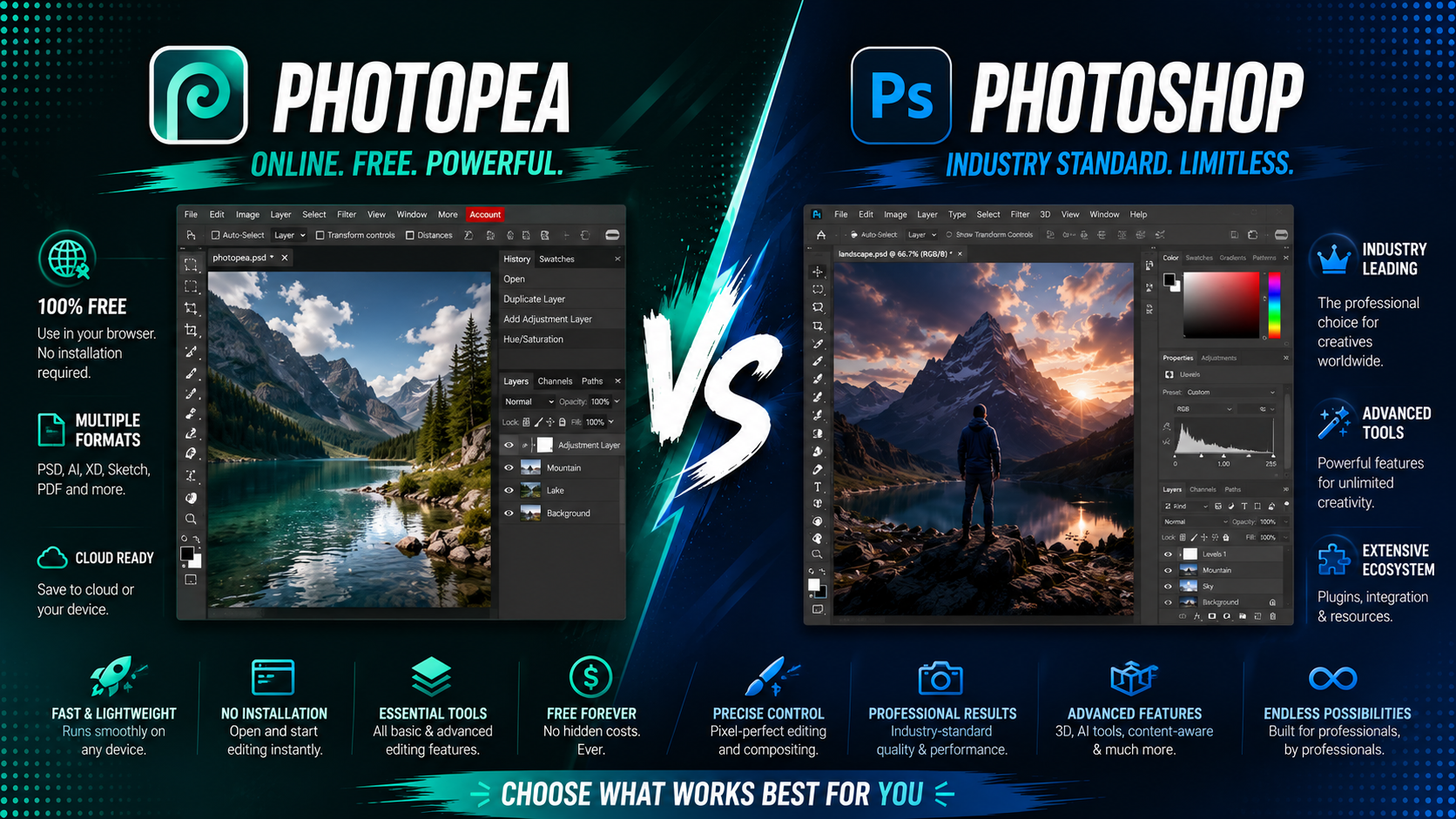
If you need a quick, direct answer: Photopea is a free, browser-based editor that replicates most of Photoshop’s core toolset and supports native PSD files, making it a solid choice for casual or occasional editing. Photoshop is a paid, more powerful application with advanced AI tools, deeper plugin support, and better performance on large or complex files, making it the better fit for professional, high-volume work.
If your editing needs are simple, Photopea will likely cover them. If you rely on advanced retouching, generative AI, or heavy client work, Photoshop’s subscription cost is easier to justify.
Photopea Requires Nothing to Start:
There’s no download, no account creation, and no sign-up wall to get editing. You open the site in your browser and you’re working within seconds. This alone makes Photopea appealing for quick one-off tasks, like resizing an image or removing a background before a deadline.
Photoshop Requires a Setup Process:
Photoshop needs to be downloaded through the Creative Cloud desktop app, which also means creating an Adobe account and entering payment details, even during the free trial. It’s a heavier commitment before you’ve even opened the program.
Editing Tools You’ll Actually Use Daily:
Cropping, layer masking, adjustment layers, text tools, and basic retouching all work reliably in Photopea. For everyday tasks — cleaning up a photo, adding text to a graphic, adjusting exposure — it performs almost identically to Photoshop.
PSD File Compatibility:
This is genuinely one of Photopea’s strongest selling points. It opens native PSD files with layers, effects, and text intact, which means you can collaborate with Photoshop users without needing the software yourself.
Export Options:
Photopea exports in common formats like JPG, PNG, and PSD without restrictions or watermarks, so your final files come out clean regardless of which tool created the original document.
Generative AI Tools:
Photoshop’s Generative Fill and related AI features let you remove objects, extend backgrounds, or generate new elements with a text prompt. Photopea has no equivalent, so tasks that would take seconds in Photoshop may require manual work in Photopea.
Handling Very Large or Complex Files:
Because Photopea runs in a browser tab, extremely large files with dozens of layers or heavy smart-object use can slow down noticeably, especially on lower-spec devices. Photoshop’s desktop performance handles this kind of load more consistently.
Plugin and Automation Support:
Photoshop’s plugin ecosystem includes tools for batch processing, advanced retouching, and workflow automation built by third-party developers. Photopea’s browser-based nature limits how deeply it can integrate with external tools.
Customer Support and Documentation:
Photoshop benefits from Adobe’s official support channels, extensive documentation, and a massive community of tutorials. Photopea’s support is more limited, relying mostly on community forums and its own help pages.
Cost Comparison: Is Photoshop’s Subscription Worth It?
Photopea is free to use, with an optional low-cost subscription just to remove ads — no features are locked behind a paywall.
Photoshop, as of 2026, costs around $22.99 per month as a standalone app, or $19.99 per month through the Photography plan, which bundles in Lightroom and cloud storage. The full Creative Cloud Pro suite runs closer to $69.99 per month for access to 20-plus apps and complete generative AI features.
For someone editing images a few times a month, that cost is hard to justify. For someone earning income from design or photography work, the AI tools and performance gains can pay for themselves quickly.
Which One Should You Actually Choose?
Occasional editing or quick fixes: Photopea is more than enough, and you’ll likely never hit its limitations.
Students and hobbyists: Photopea lets you learn core editing skills without any financial commitment.
Freelancers with light client work: Photopea can handle most requests, with Photoshop as a backup for anything more demanding.
Professional designers and photographers: Photoshop’s AI tools, plugin support, and stability with large files make the subscription worthwhile.
Frequently Asked Questions:
Is Photopea a good replacement for Photoshop? For everyday editing tasks like cropping, retouching, and layer-based design work, yes. For advanced AI features and heavy production work, Photoshop still has a clear edge.
Does Photopea have Photoshop’s AI features? No. Photopea does not currently offer generative AI tools comparable to Photoshop’s Generative Fill or Neural Filters.
Can I open a Photoshop file in Photopea without losing quality? Yes. Photopea reads native PSD files, including layers and effects, without converting or degrading the original file.
Is Photopea safe to use for professional client work? Yes, Photopea is a legitimate, widely used tool, though heavier professional workflows may still benefit from Photoshop’s stability and plugin ecosystem.
How much does Photoshop cost compared to Photopea in 2026? Photopea is free, while Photoshop costs roughly $19.99 to $22.99 per month for a single-app plan, or up to $69.99 per month for the full Creative Cloud Pro suite.
Final Verdict:
Photopea earns its comparison to Photoshop honestly — it’s not a cheap knockoff, it’s a genuinely capable editor that covers most everyday needs for free. But Photoshop’s advanced AI tools, plugin ecosystem, and file-handling stability still justify its subscription cost for professionals who need them.
Try Photopea first if you’re unsure. Open a file, run through your usual editing steps, and see if you hit a wall. If you do, that’s your signal to consider Photoshop’s subscription — and if you don’t, you may have just saved yourself a recurring monthly cost.
Also read our title: Canva vs Photoshop
Leave a Reply