

Canva vs Photoshop:
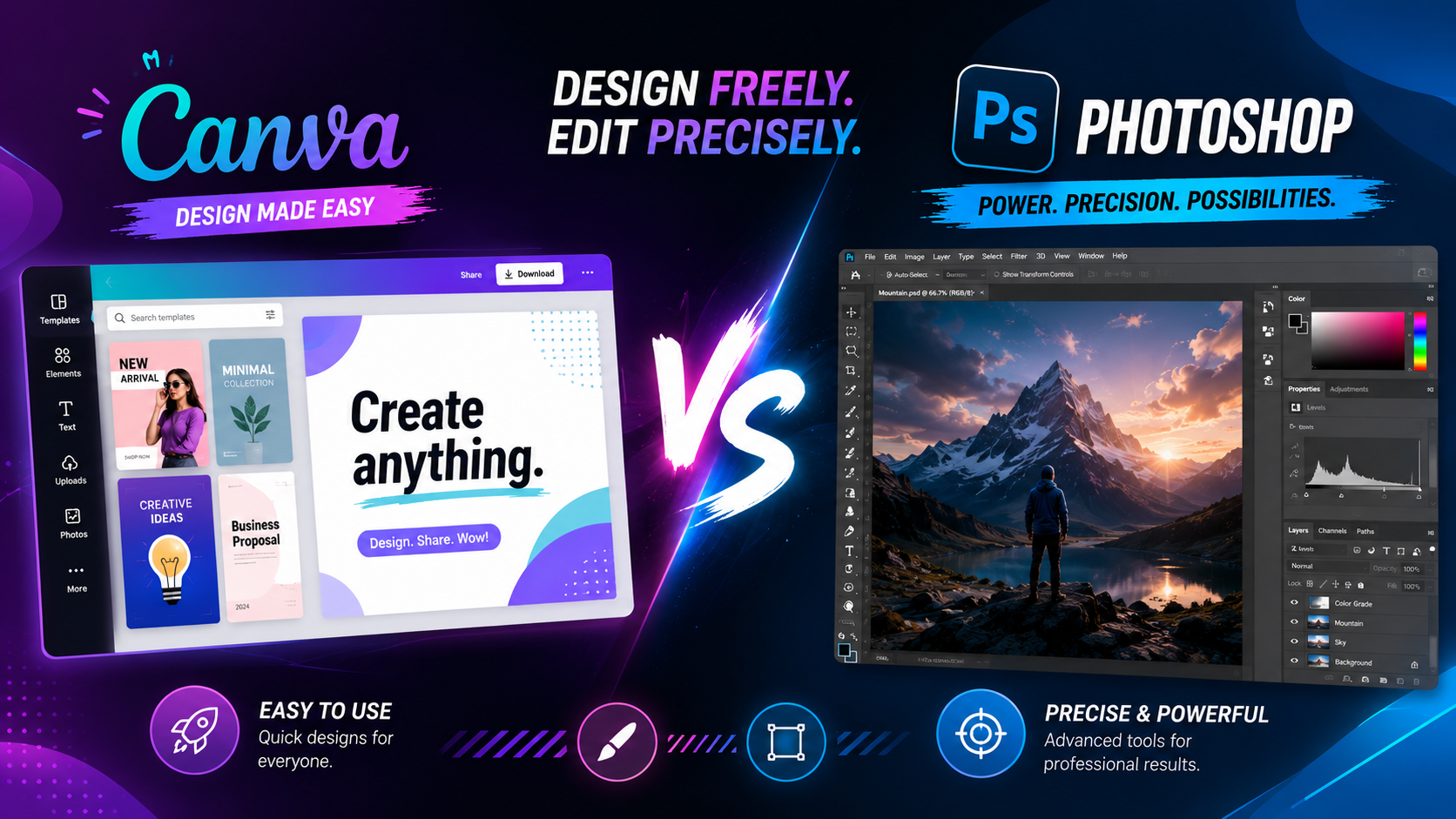
Canva vs Photoshop: If you’re comparing Canva and Photoshop, you’re probably not asking which one is “better” in some abstract sense — you’re asking which one fits what you actually need to do. Someone designing Instagram posts for a small business has completely different requirements than a photographer retouching client images, and these two tools were built for very different jobs.
This guide breaks down how Canva and Photoshop stack up in 2026 across pricing, ease of use, features, and real-world use cases, so you can stop guessing and pick the tool that matches your actual workflow.
Canva vs Photoshop: The Core Difference:
Canva is a template-driven design platform built for speed and accessibility. It’s designed so anyone, regardless of design background, can produce social media graphics, presentations, and marketing materials quickly.
Photoshop is a professional-grade photo editing and image manipulation tool. It’s built for precise pixel-level control, advanced retouching, and complex compositing work that requires real editing skill rather than dragging pre-made templates.
In short: Canva is about assembling designs fast, while Photoshop is about crafting and editing images with precision. That distinction shapes every other comparison below.
Pricing Comparison: Canva vs Photoshop Costs:
Canva Pricing:
Canva offers a genuinely useful free plan with access to thousands of templates and basic design tools. Canva Pro, which unlocks premium templates, background removal, and brand kit features, typically runs somewhere in the $13 to $15 per month range on an annual plan, with frequent promotional discounts for new users.
Photoshop Pricing:
Photoshop doesn’t offer a fully free tier. The standalone plan costs around $22.99 per month, while the Photography plan (bundling Lightroom) runs about $19.99 per month. The full Creative Cloud Pro suite, which includes 20-plus apps and complete AI tools, costs roughly $69.99 per month.
For casual design needs, Canva’s free tier alone often covers what most people need. For serious photo editing work, Photoshop’s subscription becomes a necessary cost of doing business.
Ease of Use: Templates vs Technical Skill:
Canva’s Beginner-Friendly Approach:
Canva’s drag-and-drop interface, combined with a massive template library, means new users can produce a polished design within minutes. There’s essentially no learning curve for basic tasks like resizing a graphic or swapping out text.
Photoshop’s Steeper Learning Curve:
Photoshop requires understanding layers, selection tools, masking, and often keyboard shortcuts to work efficiently. It rewards skill and practice, but that also means a genuine time investment before you can produce professional results.
Feature Comparison: What Each Tool Is Actually Built For:
Templates and Pre-Built Assets:
Canva’s biggest strength is its template library, covering everything from Instagram stories to resumes to presentation decks. Photoshop has no equivalent built-in template system, though third-party PSD templates exist.
Photo Editing and Retouching:
This is where Photoshop clearly dominates. Tools like frequency separation, dodge and burn, advanced masking, and Generative Fill give photographers and retouchers a level of control Canva simply doesn’t offer.
Collaboration and Team Features:
Canva was built with collaboration in mind — multiple people can edit a design in real time, leave comments, and manage brand assets across a team. Photoshop supports cloud documents and commenting but wasn’t designed primarily around live multi-user editing.
File Compatibility:
Photoshop natively works with PSD files and integrates tightly with other Adobe apps like Illustrator and Lightroom. Canva supports PSD import in a limited way but works best within its own ecosystem of templates and exports.
Social Media Graphics:
Canva wins here for most people. Its templates are specifically optimized for platforms like Instagram, TikTok, and Facebook, making it faster to produce on-brand content consistently.
Photo Retouching and Compositing:
Photoshop is the clear choice for anything involving detailed photo manipulation, product photography cleanup, or advanced compositing work.
Small Business Branding:
Canva’s brand kit features make it easy for small businesses to maintain consistent colors, fonts, and logos across materials without hiring a designer for every asset.
Professional Photography Studios:
Photoshop remains the industry standard for photographers who need precise control over color correction, retouching, and print-ready output.
Frequently Asked Questions:
Is Canva as good as Photoshop? For template-based design and quick graphics, Canva works very well. For detailed photo editing and retouching, Photoshop still offers more precise, professional-grade tools.
Can Canva replace Photoshop for small businesses? For most small business marketing needs, like social posts and simple graphics, yes. For product photography retouching or complex image editing, Photoshop is still the stronger tool.
Which is cheaper, Canva or Photoshop? Canva is cheaper overall, with a functional free plan and Pro pricing around $13 to $15 per month. Photoshop starts around $19.99 to $22.99 per month with no free tier.
Does Canva support PSD files like Photoshop? Canva can import PSD files with limited support for complex layer structures, but it doesn’t offer the same depth of PSD editing that Photoshop does.
Is Photoshop worth it if I already use Canva? If your work involves detailed photo retouching, compositing, or precise pixel-level editing, Photoshop is worth adding alongside Canva rather than replacing it.
Final Thoughts:
Canva and Photoshop aren’t really direct competitors — they’re built to solve different problems. Canva gets you a polished, on-brand design fast, without requiring design expertise. Photoshop gives you deep, precise control over image editing that templates simply can’t replicate.
If you’re producing social content or marketing materials, start with Canva’s free plan and see how far it takes you. If you find yourself needing detailed photo editing or retouching that Canva can’t handle, that’s your sign to add Photoshop to your toolkit.
Also read our article: GIMP vs Photoshop
Leave a Reply