

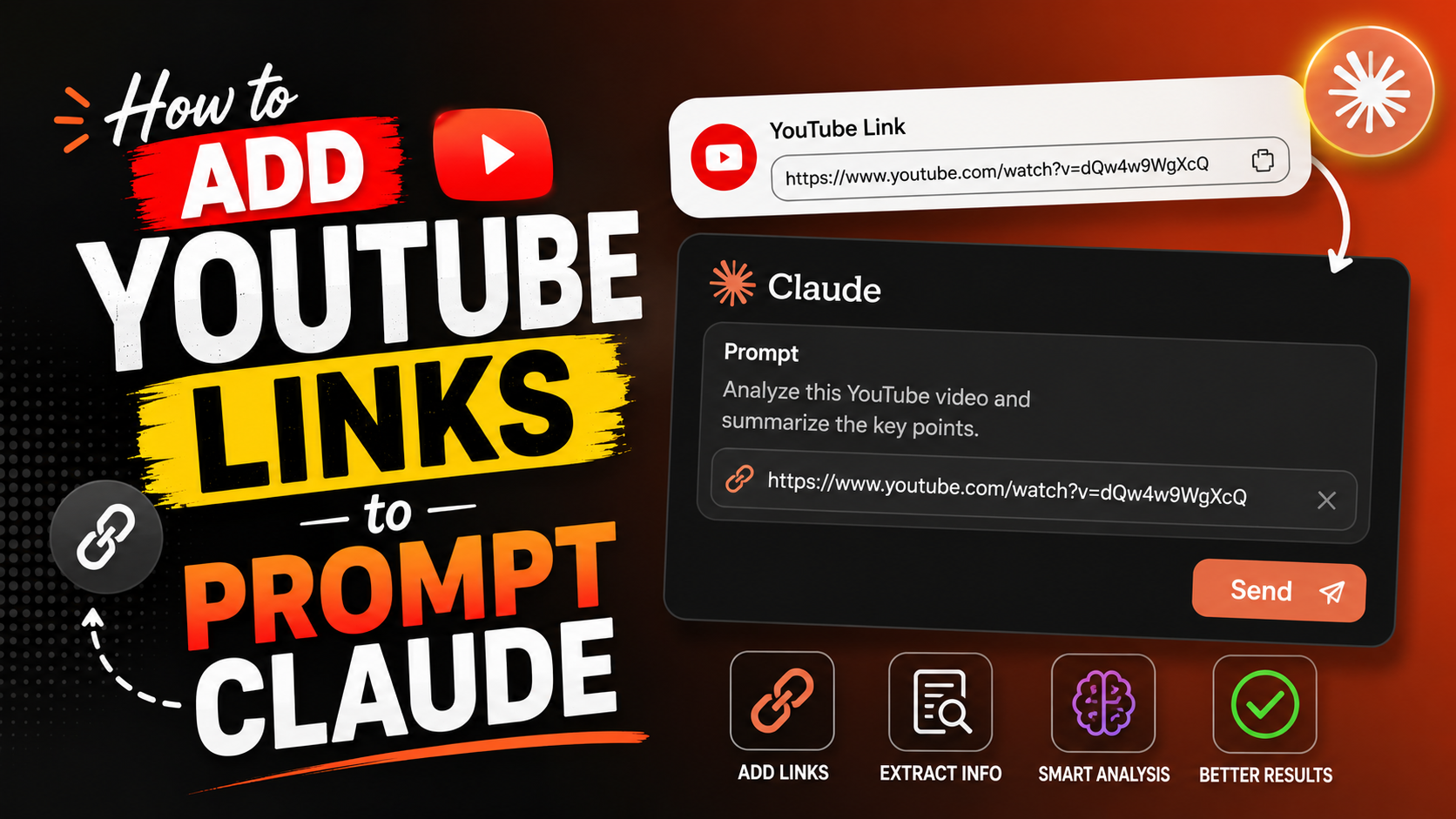

How to Add YouTube Links to Prompt Claude (The Method That Actually Works):
If you’ve ever pasted a YouTube link into Claude and asked it to “summarize this video,” you’ve probably noticed something frustrating: Claude either says it can’t watch the video, or worse, it confidently makes things up. You’re not doing anything wrong. You’ve just run into one of the more misunderstood limits of AI chat tools.
This guide walks through exactly how to add YouTube links to prompt Claude, why the direct-paste method falls short, and which workarounds actually deliver a real summary, transcript, or analysis — not a guess dressed up as an answer.
By the end, you’ll know how to get Claude to pull insights from any public YouTube video, what tools you need, and how to avoid the most common mistakes people make when feeding video content into Claude prompts.
Why Pasting a YouTube Link Into Claude Doesn’t Work on Its Own:
Here’s the direct answer, since this is the part most people get wrong: Claude cannot watch, stream, or process video or audio from a YouTube URL by default. It’s a text-and-image model. When you drop a link into the chat, Claude sees a string of characters, not footage.
So why does it sometimes respond as if it watched the video? It’s pattern-matching on the title, channel name, or anything similar in its training data, and filling in the gaps. That’s the “hallucination” problem people run into, and it’s exactly why a YouTube link prompt for Claude needs a little more setup to be reliable.
This matters for anyone using Claude prompts for content research, video summarization, or competitor analysis — if you don’t bridge that gap, you’re getting a confident guess, not real video insight.
The Two Reliable Ways to Add YouTube Links to Prompt Claude:
There are really just two paths that work today. Pick based on how often you’ll need this.
Method 1: Paste the Transcript Directly Into Your Claude Prompt
This is the no-install option, and it works right now with zero setup.
Open the YouTube video and click “Show transcript” under the description (or use the three-dot menu on mobile).
Copy the transcript text.
Paste it directly into your Claude conversation along with your request — for example: “Summarize this transcript into five key takeaways” or “Pull out the actionable advice from this talk.”
This is the fastest way to get Claude AI YouTube summary results for a one-off video. The downside: it’s manual, and it only works for videos that have captions enabled.
Method 2: Connect a YouTube MCP Server for Ongoing Use
If you’re doing this regularly — say, summarizing competitor videos, researching a niche, or analyzing your own channel’s content — a Model Context Protocol (MCP) server is worth the one-time setup.
MCP is an open standard that gives Claude tools it doesn’t have natively. A YouTube-focused MCP server fetches captions, video metadata, or even channel analytics, and hands that data to Claude automatically. Once it’s connected, you skip the copy-paste step entirely: just drop the YouTube link into prompt Claude conversations and ask your question.
Setup generally looks like this:
In Claude Desktop: open your MCP configuration file and add the server’s connection details, then restart the app.
In Claude.ai (web): go to settings, open the Connectors panel, and add the server using its provided credentials.
Several community-built options exist for this, ranging from simple transcript fetchers to fuller analytics integrations that pull view counts, retention data, and audience metrics into your Claude prompts.
What You Can Actually Do Once YouTube Is Connected to Claude:
Once a transcript is in front of Claude — whether pasted manually or fetched via MCP — here’s what genuinely works well:
Summarizing Long Videos and Webinars
Ask for a brief summary, a detailed breakdown with timestamps, or a bullet list of action items. This is especially useful for hour-long podcasts, conference talks, or tutorials you don’t have time to watch in full.
Extracting Quotes and Key Moments:
You can ask Claude to pull out specific moments, like “What did the speaker say about pricing strategy?” Claude will search the transcript text and surface the relevant section.
Repurposing Video Content Into Other Formats
A common use case: turn a YouTube transcript into a blog post, a LinkedIn caption, or talking points for your own video. This is where adding YouTube links to prompt Claude becomes genuinely useful for content creators and marketers, not just researchers.
Analyzing Channel Performance (With the Right Connector):
If you connect an analytics-focused MCP server rather than a transcript-only one, you can ask Claude questions like “Which of my last ten videos had the best watch time?” or “Compare retention between my Shorts and long-form content.” This goes beyond a single video and into ongoing channel strategy.
Common Mistakes to Avoid With YouTube Links in Claude Prompts
Assuming Claude “watched” the video. It hasn’t, unless a tool fed it the transcript or visual data. Always verify the summary against the actual video for anything important.
Using videos without captions. No captions means no transcript means nothing for Claude to read. Auto-generated captions work fine, but silent or caption-disabled videos won’t.
Expecting visual analysis without the right setup. Claude reading a transcript can’t comment on what’s shown on screen — graphics, demonstrations, facial expressions — unless you’re using a connector specifically built to process video frames, which is a more specialized setup.
Skipping verification on auto-captions. Auto-generated captions can misread names, technical terms, or accents. If accuracy matters, skim the transcript before asking Claude to build on it.
Frequently Asked Questions:
Can Claude watch YouTube videos directly? No. Claude doesn’t have native video-watching capability. It can only work with YouTube content once that content has been converted to text, through a transcript you paste in or a connected tool that fetches one for it.
Why does Claude make up information when I paste a YouTube link? Because the model recognizes patterns from the link or title and predicts plausible-sounding content, rather than flatly refusing. Always treat link-only responses as unreliable unless you’ve supplied an actual transcript.
Do I need to pay for a tool to add YouTube links to Claude prompts? Not necessarily. Pasting a transcript manually is free and works immediately. Paid options exist mainly for automation, analytics, or bulk workflows where manual copy-pasting would be too slow.
Will this work for private or unlisted YouTube videos? Generally no. Most methods rely on publicly available captions or data. Private videos usually fall outside what these tools can access.
What’s the best way to summarize a one-hour YouTube video with Claude? Pull the transcript from YouTube’s “Show transcript” option, paste it into Claude, and ask for a structured summary — for example, request key takeaways grouped by topic with approximate timestamps if the transcript includes them.
Final Thoughts: Get More Out of Claude and YouTube Together:
Adding YouTube links to prompt Claude isn’t a single button you click — it’s a small workflow, and now you know both versions of it: the quick manual transcript paste for occasional use, and the MCP connector setup for anyone doing this regularly. Either way, the key takeaway is the same: give Claude text to work with, and it’ll do excellent work; give it just a bare link, and you’re rolling the dice.
Try it on a video you’ve been meaning to watch but haven’t had time for. Grab the transcript, paste it in, and ask Claude for a summary — you’ll see the difference immediately compared to a plain link drop.


Leave a Reply