

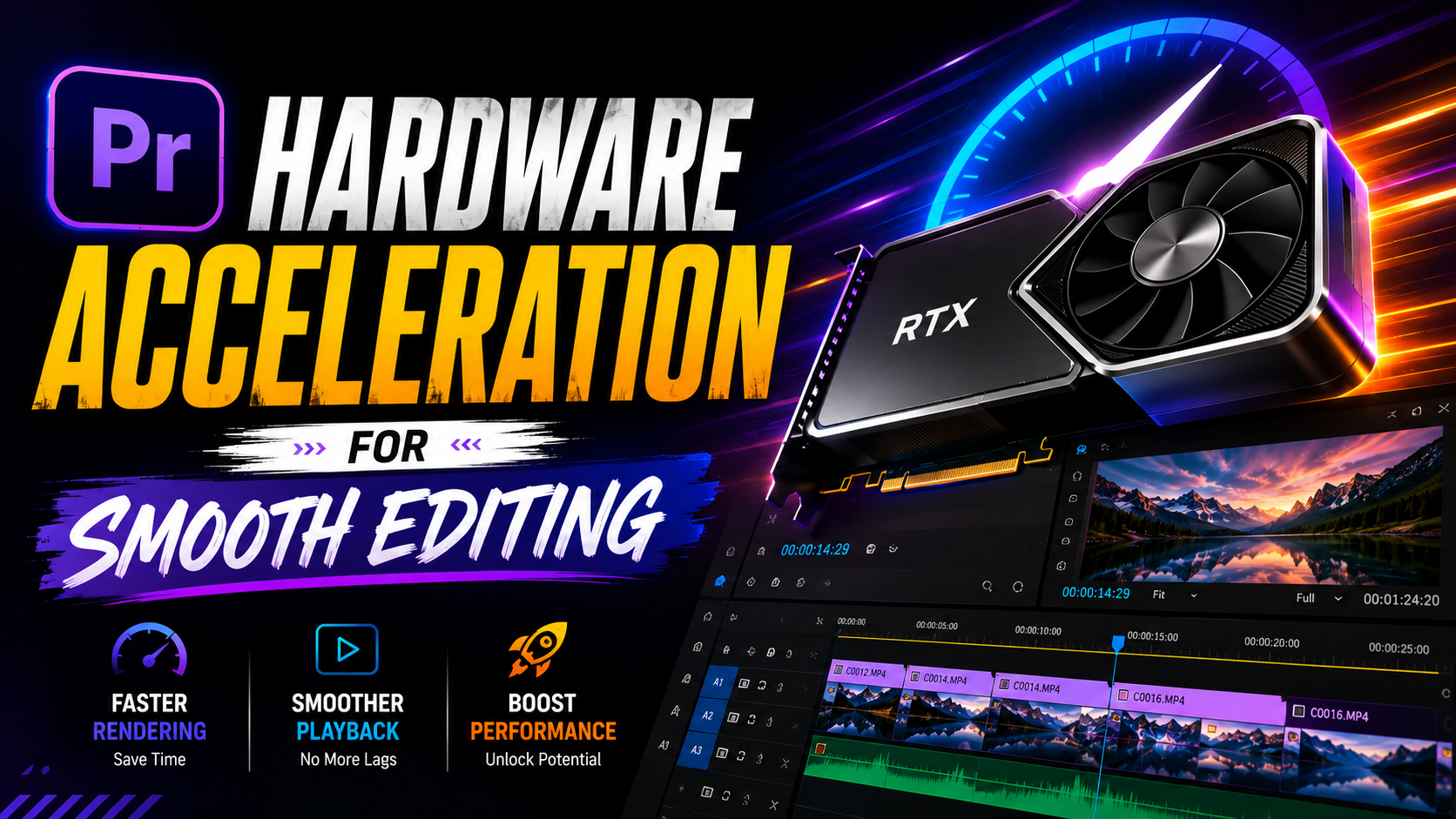

Hardware Acceleration in 2026:
Introduction:
If you’ve ever waited what felt like forever for a video to export, only to later discover a single setting could have cut that time in half, you’re not alone. That setting is usually hardware acceleration — and once you understand it, you’ll wonder why you didn’t turn it on sooner.
Hardware acceleration has become essential for anyone editing video, running design software, or even just browsing media-heavy websites in 2026, as content gets more resolution-heavy and creators need faster turnaround times. In this guide, you’ll learn what hardware acceleration actually does, why it matters more than ever this year, how to enable it correctly, and how to troubleshoot it when things go wrong.
What Is Hardware Acceleration?
Hardware acceleration means offloading specific computing tasks — like video decoding, rendering, or graphics processing — from your computer’s general-purpose processor (CPU) to specialized hardware built for that exact job, most commonly the graphics processing unit (GPU).
Think of it like hiring a specialist instead of asking a generalist to do everything. Your CPU can technically handle video encoding, but a GPU is purpose-built for those repetitive, parallel calculations, so it finishes the same task dramatically faster while using less energy.
Hardware Acceleration vs. Software Processing:
Software processing relies entirely on the CPU to complete a task step by step. Hardware acceleration splits that workload, letting the GPU or a dedicated media engine handle the heavy lifting. The result is usually faster performance, lower CPU temperatures, and smoother playback — especially with high-resolution or 4K footage.
Why Hardware Acceleration Matters More in 2026:
Video resolutions keep climbing, and so does viewer expectation for quality. As more creators work with 4K and even 8K footage, relying on the CPU alone to encode and decode that data becomes painfully slow.
This year, most modern editing software, browsers, and streaming platforms are built with the assumption that hardware acceleration is available and enabled by default. Skipping it doesn’t just slow down exports — it can cause stuttering playback, dropped frames, and unnecessary strain on your system.
Where You’ll Notice the Difference:
Video editing software — faster timeline scrubbing and shorter export times
Web browsers — smoother video playback and reduced battery drain on laptops
Streaming and gaming — less lag and more consistent frame rates
Video calls — clearer video with lower CPU usage during calls
How to Enable Hardware Acceleration:
Enabling hardware acceleration is usually straightforward, though the exact steps vary depending on your software and hardware.
In Video Editing Software:
Most editing programs include a setting under playback or export preferences labeled something like “Use Hardware Acceleration” or “Use GPU for Encoding.” Selecting your specific GPU model from the dropdown, rather than leaving it on automatic, often produces more consistent results.
In Web Browsers:
Browsers typically have a hardware acceleration toggle under system or performance settings. Turning this on can noticeably improve video playback smoothness, particularly on lower-powered laptops.
On Your Operating System:
Both major operating systems allow certain graphics-related tasks to be handled by the GPU automatically, but keeping your graphics drivers updated is essential for this to work reliably.
Common Hardware Acceleration Problems (and How to Fix Them):
Even though hardware acceleration usually improves performance, it can occasionally cause issues if your system isn’t configured correctly.
Export Crashes or Freezing:
This is often caused by outdated graphics drivers. Updating to the latest driver version resolves the majority of these cases.
No Noticeable Speed Improvement:
If enabling hardware acceleration doesn’t seem to help, your GPU may not support the specific encoding format you’re exporting in, causing the software to fall back to CPU processing silently.
Visual Glitches During Playback:
Occasional flickering or color artifacts can happen when hardware acceleration conflicts with certain codecs. Switching to software decoding temporarily can confirm whether this is the cause.
Choosing Hardware That Supports Better Acceleration:
If you’re due for a hardware upgrade, look for GPUs with dedicated encoding and decoding engines, as these are specifically optimized for video tasks rather than just gaming performance. Even mid-range GPUs today often include capable media engines that dramatically outperform CPU-only processing for everyday editing tasks.
Frequently Asked Questions:
What does hardware acceleration actually do? It shifts specific processing tasks, such as video encoding or graphics rendering, from the CPU to specialized hardware like a GPU, resulting in faster performance and reduced system strain.
Should I always enable hardware acceleration? In most cases, yes. It generally improves speed and reduces CPU load, though it’s worth disabling temporarily if you experience crashes or visual glitches to confirm whether it’s the cause.
Does hardware acceleration affect video quality? Not typically. Quality differences between hardware and software encoding are usually minimal, though software encoding can sometimes produce marginally better compression at the cost of speed.
Why is my export not getting faster with hardware acceleration on? Your GPU may not support the specific format or codec being used, causing the system to default back to CPU processing without notifying you directly.
Does every computer support hardware acceleration? Most modern computers do, but the level of support depends on your GPU model and how recently your graphics drivers have been updated.
Conclusion: Work Smarter, Not Harder
Hardware acceleration isn’t a hidden trick reserved for professional editors — it’s a practical setting that can save you real time on every single export, every day. Once you understand what it does and how to enable it correctly, there’s rarely a good reason to leave it off.
Take a moment to check your editing software or browser settings today, confirm hardware acceleration is enabled and configured correctly, and notice the difference on your very next export.
How to enable or disable Hardware Acceleration in Windows 11
Leave a Reply