

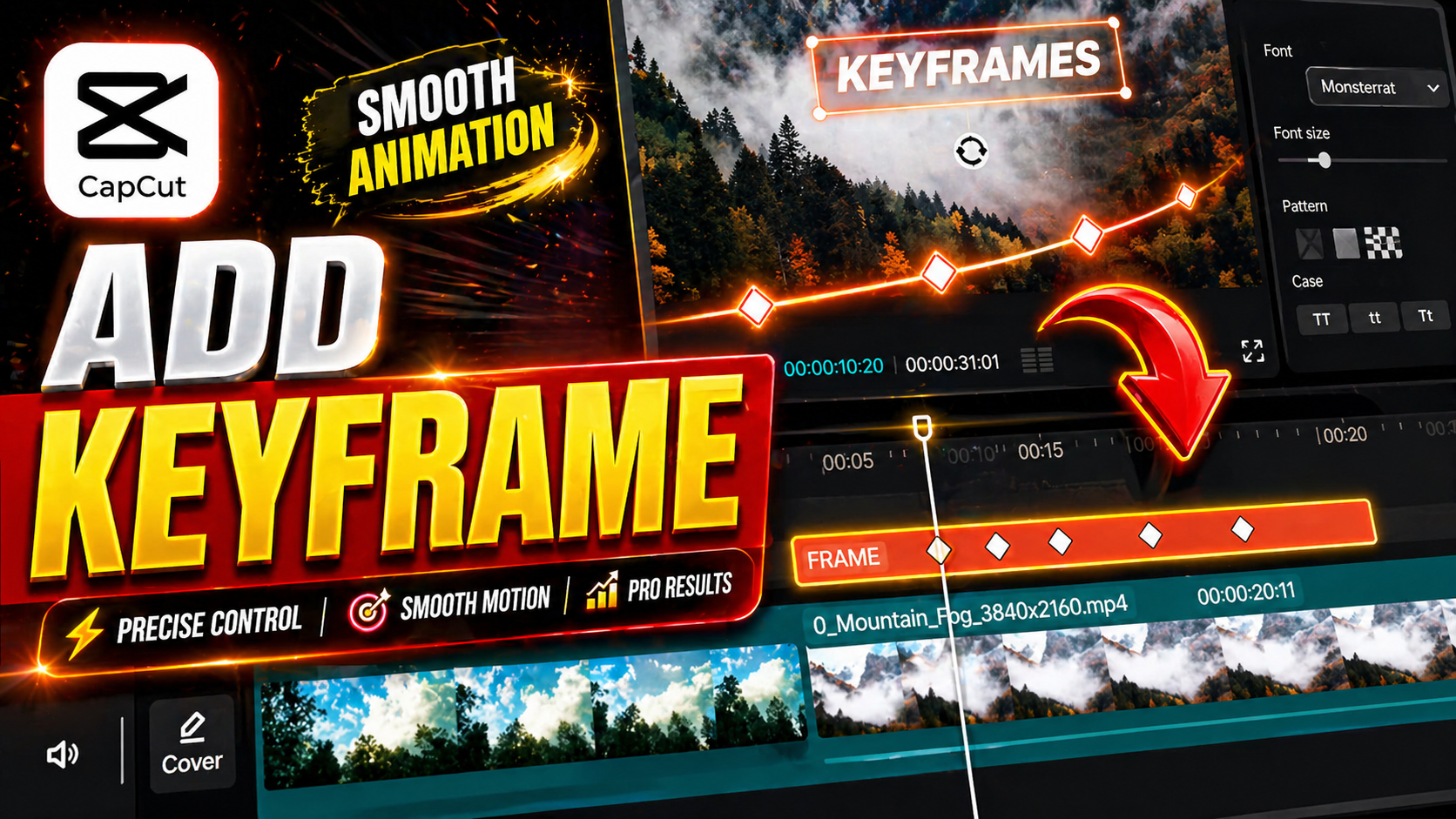

Introduction: Why Keyframes Changed the Game for Content Creators:
If you’ve ever wondered how TikTok creators achieve those smooth zoom effects, how YouTube video makers create cinematic transitions, or how Instagram Reels stand out with eye-catching animations—keyframes are the secret sauce.
Whether you’re a social media content creator, aspiring filmmaker, or just someone who wants to make videos look more professional, understanding keyframes in CapCut is non-negotiable in 2026. CapCut, the powerhouse video editing app trusted by millions worldwide, makes this powerful feature accessible even to complete beginners.
In this guide, you’ll discover exactly how to master keyframes, create stunning visual effects, and elevate your video content from ordinary to extraordinary. By the end, you’ll have the confidence to use keyframes for smooth animations, dynamic motion, and professional-grade video editing.
What Are Keyframes in CapCut? A Beginner’s Explanation:
Let’s start with the basics. A keyframe is like a snapshot in time where you tell CapCut “this is what I want the video to look like at this exact moment.”
Think of it this way: imagine you’re directing an actor to move across a stage. A keyframe is where you mark specific positions—the starting position, the ending position, and any important points in between. CapCut then automatically fills in all the movement between these marked points, creating smooth, natural-looking animation.
How Keyframes Work in CapCut:
When you set multiple keyframes with different properties (like size, position, opacity, or rotation), CapCut creates a smooth transition between them. This is called interpolation, and it’s what makes your animations look professional rather than choppy.
For example:
- Keyframe 1 (at 0 seconds): Video element is small and in the corner
- Keyframe 2 (at 2 seconds): Video element is large and centered
- Result: A smooth zoom-in effect over 2 seconds
This fundamental concept unlocks endless creative possibilities for your 2026 content strategy.
Setting Your First Keyframe: Step-by-Step Tutorial:
Ready to get hands-on? Here’s how to create your first keyframe effect.
Step 1: Import Your Footage and Select the Element
Open CapCut and start a new project. Import your video or image. Select the video clip or element you want to animate. This could be a text overlay, image, or video clip itself.
Step 2: Locate the Keyframe Button
Look for the keyframe icon (usually a diamond shape ◊) in the effects panel or timeline. When you click an element, you’ll see various adjustment options appear—scale, position, rotation, opacity, and more.
Step 3: Set Your First Keyframe
Position your playhead where you want the animation to start. Click the keyframe icon next to the property you want to animate. This locks in the current state as your starting point.
Step 4: Move the Playhead and Create Change
Drag the timeline slider forward to where you want the animation to end. Adjust the property (make it bigger, move it, rotate it—whatever you’re going for). A second keyframe is automatically created.
Step 5: Preview and Adjust
Hit play to see your animation in action. If it doesn’t look right, click on individual keyframes and tweak them until you get the effect you want.
Essential Keyframe Animations Every Creator Should Know:
Creating Smooth Zoom Effects:
Zoom effects are everywhere in 2026 content. To create a professional zoom:
- Set a keyframe at the beginning with a scale of 100%
- Move forward 1-2 seconds
- Change the scale to 120-150%
- Let CapCut interpolate the smooth transition
Pro tip: Combine zoom with position changes for more dynamic movement. Start zoomed out and in one corner, then zoom in while moving to center—this creates cinematic depth.
Pan and Motion Animations:
Panning (moving across an image) keeps static photos engaging. Set keyframes for the position property at different points in your timeline, and CapCut creates smooth movement across your footage. This works beautifully for Instagram Stories and Reels where you want to direct viewer attention.
Opacity Transitions (Fade In/Out):
Create professional fade effects by animating opacity:
- Start with opacity at 0% (invisible)
- Fade in by setting opacity to 100% after 0.5 seconds
- This works perfectly for text overlays, images, and transitions between clips
Rotation and 3D Effects:
CapCut allows you to rotate elements with keyframes. Spinning text, rotating images, or creating 3D-style flips all become possible when you animate the rotation property across multiple keyframes.
Advanced Keyframe Techniques for Professional Results:
Combining Multiple Properties:
The real magic happens when you animate multiple properties simultaneously. For example:
- Scale the element larger (zoom effect)
- Move it to the center (position change)
- Rotate it 360 degrees (rotation)
- Fade in from 0 to 100% opacity
All four animations happening together at different speeds creates complex, professional-looking effects that took professionals hours to achieve just five years ago.
Using Easing and Curve Adjustments:
CapCut lets you adjust the easing curve between keyframes. Instead of linear (constant speed), you can make animations:
- Ease in: Slow start, fast finish
- Ease out: Fast start, slow finish
- Custom curves: Create natural motion that mimics real physics
This is what separates amateur and professional content. Realistic easing makes viewers accept animations as intentional rather than jarring.
Keyframe Speed and Timing Control:
Change the timing of your animation by dragging keyframes closer together (faster animation) or farther apart (slower animation). You can also directly input timing values for precision editing—essential when syncing animations to music beats.
Common Keyframe Mistakes and How to Avoid Them:
Even experienced creators slip up with keyframes. Here are the pitfalls:
Jerky Movement Between Keyframes: This usually means your keyframes are too far apart or your easing is wrong. Try adding intermediate keyframes or adjusting the curve.
Over-Animation: Just because you can animate everything doesn’t mean you should. Leave some elements still—movement should enhance your message, not distract from it.
Unmatched Speeds: If you’re animating multiple elements, keep their speeds consistent unless creating intentional contrast. Mismatched speeds feel amateurish.
Ignoring Mobile Viewing: Remember, most of your 2026 audience watches on phones. Test your keyframe animations on mobile before publishing.
Frequently Asked Questions About CapCut Keyframes:
Q1: Can I use keyframes on text in CapCut?
Absolutely! Text is one of the most powerful uses for keyframes. Animate text size, position, rotation, and opacity to create engaging title sequences, animated captions, and dynamic text effects. This is particularly effective for YouTube Shorts and TikTok content.
Q2: How many keyframes is too many?
There’s no hard limit, but consider your purpose. A 3-second fade needs just 2 keyframes. Complex animations might use 5-10. More keyframes allow finer control but also increase file size. Aim for the minimum needed to achieve your effect.
Q3: Do keyframe animations slow down my video rendering?
Minimal impact on modern devices, but more complex animations with many layers require more processing power. If your CapCut app lags, consider reducing the number of simultaneous animated elements.
Q4: Can I copy keyframe animations between clips?
CapCut doesn’t have a built-in copy/paste for keyframe sequences, but you can manually recreate animations quickly once you understand the principle. Some creators export and reimport animated elements to reuse them.
Q5: What’s the best way to learn keyframes faster?
Practice with simple animations first—basic zoom and fade effects. Once comfortable, combine multiple properties. The learning curve is steep for the first week, then skills compound rapidly.
Why Keyframes Matter More in 2026:
The 2026 content landscape is brutally competitive. Static videos get scrolled past in milliseconds. Smooth, intentional animations keep viewers engaged—and engagement signals matter for algorithmic ranking on every platform.
Keyframes aren’t just a “nice to have” feature anymore. They’re foundational to:
- Retaining viewer attention in the first 3 seconds
- Creating shareworthy content that stands out
- Building a recognizable style that makes your channel unique
- Communicating information more effectively through visual hierarchy
Your Action Plan: Start Creating Today:
- Watch the complete video tutorial (linked in the description) to see keyframes in action
- Open CapCut and import a simple 5-second clip
- Create your first zoom effect using the steps outlined above
- Experiment with fade-ins, position changes, and opacity
- Combine two properties once you’re comfortable with single-property animations
- Create 5 short videos using keyframe effects to build muscle memory
The most successful creators in 2026 aren’t the ones with the most expensive equipment—they’re the ones who’ve mastered the fundamentals. Keyframes are one of those fundamentals.
Conclusion: Your Next Level in Video Creation:
Keyframes in CapCut are your ticket to creating professional, engaging video content without expensive software or technical expertise. What took Hollywood editors weeks in the 1990s now takes minutes with your smartphone.
The difference between content that gets ignored and content that gets saved, shared, and loved often comes down to professional polish. Smooth animations, intentional motion, and dynamic transitions—created with keyframes—are what create that polish.

Leave a Reply