

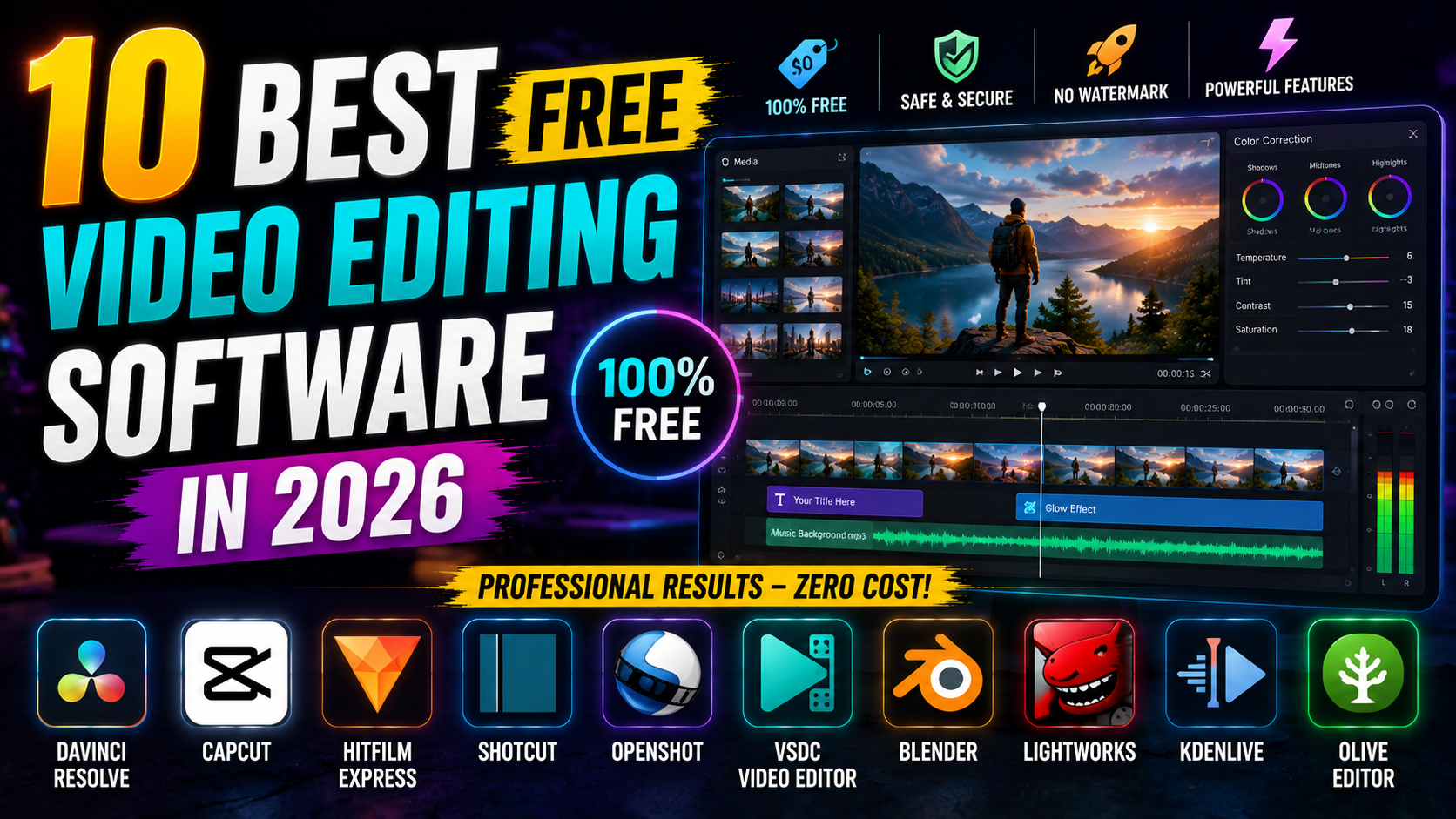

Introduction
Remember when making a professional-quality video required expensive software and years of training? Those days are long gone.
Whether you’re a content creator looking to grow your YouTube channel, a social media manager managing multiple platforms, or someone who just wants to edit home videos—finding the right free video editing software can genuinely transform your creative output. The landscape has shifted dramatically, and in 2026, you no longer need to choose between quality and cost.
The challenge isn’t finding free options anymore. It’s finding the right free option for your specific needs. After all, not every video editor is created equal. Some are packed with professional features but have a steep learning curve. Others are incredibly simple but lack crucial capabilities when you’re ready to level up.
In this guide, I’ll walk you through the most legitimate best free video editing software options available today, breaking down exactly what makes each one special, who they’re best for, and how to get started immediately.
1. CapCut: The Most Beginner-Friendly Free Video Editor
If you’ve scrolled through TikTok, Instagram Reels, or YouTube Shorts lately, chances are you’ve seen videos created in CapCut. And for good reason.
CapCut has become the gold standard for free video editing for social media, and it’s not even close. What started as a mobile app has evolved into a powerhouse that now includes a desktop version, making it accessible whether you’re editing on your phone between meetings or setting up a full editing workstation.
Why CapCut Wins
Zero learning curve: The interface is genuinely intuitive. Most people can create a polished video within minutes of opening the app. There’s no intimidating menu structure or confusing keyboard shortcuts. You see what you need, and it works exactly how you’d expect.
No watermarks: This is huge. Many free editors slap their logo on every export, but CapCut doesn’t. Your final video is completely yours. No branding, no distractions, no compromise.
Advanced features for free: Auto captions, background removal, color grading, transitions, effects, and sound effects—all without paying a cent. These are features competitors charge $20+ monthly subscriptions for.
Cross-platform syncing: Start on mobile, finish on desktop. Your projects sync seamlessly between devices. This flexibility is genuinely game-changing for creators who work on the go.
The Numbers
CapCut has over 200 million downloads globally. It’s the default editor for TikTok creators, Instagram Reels producers, and YouTube Shorts creators. When content creators ask “what should I use?” the answer increasingly isn’t “pay for a pro tool”—it’s simply “use CapCut.”
Best For
- Content creators of any level
- TikTok producers
- YouTube Shorts creators
- Instagram Reels makers
- Anyone who values speed and simplicity
- Social media managers managing multiple accounts
- People creating their first videos
Getting Started
The CapCut interface feels natural within seconds. You import footage, drag clips onto the timeline, trim them down, add transitions, slap on some effects, and you’re done. The process is fast enough that casual creators actually finish projects instead of abandoning them halfway.
But here’s the thing: there’s a massive gap between “I can use CapCut” and “I can create videos people actually want to watch.”
The difference isn’t the software—it’s understanding how to:
- Structure videos for maximum engagement
- Use color grading to create a distinct visual style
- Implement sound design that makes videos feel premium
- Optimize for different platforms (TikTok’s algorithm is different from YouTube’s)
- Create custom effects that make your content stand out
If you’re serious about CapCut, I’ve created a comprehensive course covering everything from basic editing to advanced techniques, color grading mastery, platform-specific optimization, and building a repeatable system for creating content efficiently. It covers the professional techniques that separate “pretty good” videos from the ones that go viral. Check it out if you want to unlock CapCut’s full potential and start creating videos that stop the scroll. here full playlist link: Click Here
2. DaVinci Resolve: Professional-Grade Features at Zero Cost
Here’s something that shocks most people: DaVinci Resolve’s free version is genuinely used by professional editors on major film productions. This isn’t marketing hype—it’s legitimate, industry-standard professional software.
If you’ve watched an Oscar-winning film or a major Netflix series, there’s a reasonable chance it was color-graded in DaVinci Resolve.
The Professional Reality
DaVinci Resolve isn’t a “free version of pro software.” It’s the actual pro software, with a free tier. The paid version (Studio) adds some advanced features, but the free version is powerful enough for professional work.
Key Features That Stand Out
Fusion Page: This is node-based compositing that rivals plugins costing thousands of dollars. For VFX work, backgrounds, motion graphics, and complex animations, Fusion is incredibly powerful. Most hobbyists never touch it, but it’s there if you need it.
Unmatched Color Grading: The Resolve Color Engine is industry-standard in Hollywood. If you’ve ever seen a film with a “look”—a distinctive color palette that defines the entire project—there’s a good chance it was created in DaVinci Resolve. The tools available for free rival paid alternatives costing hundreds monthly.
Fairlight Audio Editing: Professional-grade audio mixing included. Most video editors have basic audio tools. DaVinci Resolve has dedicated audio workstation capabilities. You can mix, EQ, compress, and design sound like a professional.
Full Editing Flexibility: The timeline editing in Resolve is industry-standard. You can handle projects of literally any scale—from simple YouTube videos to feature films.
The Reality Check
DaVinci Resolve has a steeper learning curve than CapCut. You’re looking at actual training time—maybe 10-15 hours of tutorial watching before you feel comfortable. The interface is more complex. There are more options. More ways to do things wrong.
But here’s the thing: if you’re willing to invest that weekend in learning, you gain access to tools that creators pay $500+ yearly to access elsewhere. And once you understand Resolve, every other editor feels limited.
Best For
- Professional video creators
- YouTube creators focused on longer-form content
- Anyone working on films or documentaries
- Serious filmmakers on a budget
- Creators who want complete control over color grading
- People creating educational or tutorial content
- Anyone who might eventually work professionally
Getting Started
DaVinci has an excellent community and tons of free tutorials. YouTube creators like Casey Faris and Video Creator have built entire channels teaching Resolve. The investment is your time, not money.
The typical path: Spend a weekend learning the basics, another week getting comfortable, then start your first real project. By your third or fourth project, you’ll feel like a pro.
3. HitFilm Express: VFX-Heavy Projects Made Accessible
If you’re creating action sequences, sci-fi effects, or anything requiring serious visual effects, HitFilm Express should be on your radar.
HitFilm fills a specific niche: it’s for people who want professional VFX capabilities without professional VFX software pricing.
What Makes It Unique
Professional VFX Library: HitFilm includes effects that used to require separate plugins costing hundreds of dollars. Particle effects, light effects, 3D compositing, motion tracking, color matching—all included. If you’re creating action videos, sci-fi content, or anything with advanced effects, HitFilm is specifically designed for you.
GPU Acceleration: Projects render noticeably faster than competitors. If you’re working with 4K footage or complex effects, this matters significantly.
Flexible Marketplace: HitFilm has a marketplace with additional packs. Many are free. Some are paid. But even the free version includes more effects than most creators will ever use.
Intuitive Timeline: Unlike some professional tools that require learning complex workflows, HitFilm’s timeline feels familiar if you’ve used any video editor before.
The Trade-off
The interface is more complex than CapCut. You’ll benefit from understanding basic video editing concepts before diving in. It’s not beginner-unfriendly—it’s just more advanced than the simplest options.
Best For
- VFX enthusiasts
- Action video creators
- Gaming content creators
- Sci-fi filmmakers
- Anyone creating videos with heavy special effects
- Motion graphics designers
- People wanting professional effects without professional pricing
When to Use HitFilm
You’re not using this for quick social media clips. You’re using this because your project requires effects that standard editors can’t handle. It’s specialized software for specialized needs.
4. OpenShot: The Lightweight Option for Simple Projects
Sometimes you don’t need a powerhouse. Sometimes you need something fast, straightforward, and efficient. OpenShot is that tool.
OpenShot is what happens when a developer builds video editing software specifically for people who just want to edit videos without unnecessary complexity.
Why It’s Worth Knowing
Incredibly Lightweight: Runs smoothly even on older computers. If you’re editing on a 5-year-old laptop, OpenShot won’t struggle. It’s designed to be efficient with system resources.
Simple, Clean Interface: No unnecessary features cluttering the workspace. The interface is almost minimalist. You see what you need, nothing more.
Totally Open-Source: It’s transparent about what it does and how it works. No hidden algorithms, no telemetry you don’t want. Just pure, open video editing software.
Perfect for Basic Cuts and Transitions: YouTube video intros, simple compilations, straightforward editing—OpenShot handles these quickly and painlessly.
What It Doesn’t Do
It won’t win awards for advanced features. Color grading is basic. Effects are limited. Audio editing is functional but simple. If you need professional features, you’ll hit OpenShot’s ceiling quickly.
Best For
- Absolute beginners
- People editing on older hardware
- Simple projects that don’t require advanced features
- Educational content creators
- Anyone who just needs to quickly trim and arrange clips
- Teachers and educators making instructional videos
- People who value simplicity over features
When to Choose OpenShot
Your project is straightforward. You need to cut clips, add a few transitions, maybe some basic effects, and export. You’re not planning to grade colors professionally or add complex effects. OpenShot is perfect for that.
5. Shotcut: Maximum Flexibility and Control
Shotcut is the free editor for people who like having options. Built on the powerful MLT framework, it offers impressive versatility without forcing you into anyone’s workflow.
It’s not the simplest editor, and it’s not the most powerful. It’s somewhere in the middle, with options that scale from simple to complex depending on your needs.
Standout Features
Extensive Format Support: Works with virtually any video format you throw at it. AVI, MOV, MKV, 4K, 8K—Shotcut handles it. You won’t hit a “this format isn’t supported” wall.
Professional-Grade Filters: Color correction, audio effects, distortion, noise reduction—all included. Not as powerful as DaVinci Resolve’s color engine, but genuinely professional-quality.
Multi-Track Editing: Handle complex projects with dozens of layers. Shotcut won’t choke on complicated timelines.
Active Development: Regular updates with new features and improvements. The software is actively maintained, so you know bugs get fixed and features get added.
Scriptable: If you’re technical, Shotcut can be scripted for automated workflows. This is niche functionality, but it’s there if you need it.
The Learning Curve
Shotcut is more intimidating than CapCut or OpenShot, but less overwhelming than DaVinci Resolve. It takes maybe 4-6 hours to feel comfortable, then you’re off to the races.
Best For
- Experienced video editors looking for free options
- People working with unusual file formats
- Anyone valuing flexibility over hand-holding
- Content creators who want professional tools without pro pricing
- People creating a variety of projects (not just social media)
The Philosophy
Shotcut trusts you to know what you’re doing. It doesn’t hold your hand, but it also doesn’t limit you. If you know what you want to do, Shotcut lets you do it.
Real-Time Playback: See your edits instantly without rendering delays. Especially valuable when you’re working with 4K or higher resolution footage.
The Consideration
Some advanced features require the paid version. The free version is powerful, but you’ll eventually hit limitations if you work on complex projects. That said, the free version is genuinely feature-rich.
The learning curve is moderate. It’s not as simple as CapCut, but it’s more approachable than DaVinci Resolve.
Best For
- Aspiring professional editors
- Those wanting to learn on industry-standard tools
- Serious YouTube creators
- Filmmakers who want professional software without professional pricing
- People planning eventual professional work
- Editors who value industry-standard workflows
The Investment
You’re investing your time in learning actual industry software. That knowledge transfers if you ever need to use professional versions. That’s genuinely valuable
How to Choose Your Free Video Editing Software
Not sure which tool is right for you? These questions will point you in the right direction.
Question 1: What’s Your Main Editing Focus?
Creating social media content (TikTok, Instagram, YouTube Shorts)? → CapCut is your answer. It’s specifically built for this use case. No question.
Creating longer YouTube videos, vlogs, or educational content? → DaVinci Resolve. Yes, it has a learning curve, but the tools you get are worth it. Professional color grading, proper audio editing, powerful timeline management.
Creating content with heavy VFX, effects, or motion graphics? → HitFilm Express. This is what it’s built for.
Just need basic cuts and trimming? → OpenShot. Don’t overthink it. Get something simple and move on.
Working with unusual formats or need maximum flexibility? → Shotcut. It handles edge cases others miss.
Question 2: What’s Your Experience Level?
Complete beginner, never edited a video before: → Start with CapCut. You’ll create decent videos in your first session. Confidence matters.
Some video editing experience: → You can handle Shotcut or Lightworks. You know what you’re doing well enough to navigate these interfaces.
Experienced editor wanting professional tools: → DaVinci Resolve or Shotcut. Stop wasting time on beginner tools.
Question 3: What Devices Will You Edit On?
Mobile and desktop? → CapCut is your only option with true cross-platform integration.
Desktop only? → Any of the above work fine.
Linux machine? → Kdenlive.
Older or less powerful computer? → OpenShot. It’s lightweight and won’t struggle.
Question 4: What’s Your Learning Style?
I want to start immediately without learning: → CapCut. You’ll be productive immediately.
I’m willing to invest time learning: → DaVinci Resolve or Shotcut. Give yourself a weekend and you’ll be competent.
I want the simplest possible interface: → OpenShot.
I like having lots of options to explore: → Shotcut or DaVinci Resolve.
Common Questions About Free Video Editing Software
Q: Will free video editors add watermarks to my videos?
Most modern free editors don’t, but it varies. CapCut, DaVinci Resolve, Shotcut, HitFilm Express, and Kdenlive are all completely watermark-free. Your final export is yours alone.
However, always verify this before investing significant time in a new editor. Check the software’s settings and export one test video to confirm. Different versions sometimes have different policies.
Q: Can I actually create professional-quality videos with free software?
Absolutely. The software quality isn’t the limiting factor anymore—your skill and creativity are.
I know successful YouTube creators earning six figures who use exclusively free tools. The difference between their videos and mediocre videos isn’t the software. It’s:
- Understanding composition and framing
- Knowing how to structure a story
- Using color and sound strategically
- Editing with intention, not just trimming clips
The software enables this, but it doesn’t create it.
Q: How do free editors make money if they don’t charge users?
Different business models:
CapCut is owned by ByteDance (the company behind TikTok). They subsidize the cost because it keeps creators creating content for their platforms.
DaVinci Resolve has a paid “Studio” version with advanced features. Most users are fine with free. Some need the paid features and upgrade. It’s a freemium model.
HitFilm Express has a free version and sells additional effect packs. Most creators use the free version and never upgrade.
Open-source editors (Shotcut, Kdenlive) survive through community support, donations, and sometimes corporate sponsorship.
The point: these are genuinely free, not bait-and-switch schemes. They’re not collecting your data to sell to advertisers. They’re real, legitimate free software.
Q: Which free editor renders videos the fastest?
HitFilm Express and DaVinci Resolve typically have the fastest render times because they use GPU acceleration. Your graphics card does much of the heavy lifting.
That said, rendering speed depends heavily on your hardware. A computer with a good GPU will render much faster than one without, regardless of software.
Q: Can beginners really use professional editors like DaVinci Resolve?
Yes, absolutely. But understand what you’re getting into. It’s like comparing a simple kitchen knife to a professional chef’s knife. Both cut things. The professional knife requires more skill to use effectively.
The typical beginner DaVinci Resolve journey:
- Hour 1-2: “This is complicated and overwhelming”
- Hour 3-5: “I’m starting to understand the interface”
- Hour 10-15: “Okay, I can actually use this”
- Hour 20+: “This is powerful and I want to learn more”
That’s a normal learning curve. It’s not impossible. It’s just not instant.
Q: What if I need a feature a free editor doesn’t have?
You have options:
- Move to a different free editor that has that feature
- Learn the workaround in your current editor
- Upgrade to paid software if the feature is mission-critical
Most creators live within the constraints of free software and create great work. The limitations are real, but they’re often not as limiting as you think.
Making the Most of Your Free Editor: The Next Step
Choosing software is just the beginning. The real transformation happens when you actually master it.
If you choose CapCut—and honestly, most people should start here because of how quickly you’ll see results—there’s a significant knowledge gap between “I can cut clips together” and “I create videos people actually want to watch.”
What Separates Good Videos from Viral Videos
Good video editors cut clips together. Great creators understand:
- Workflow optimization – The difference between editing a video in 2 hours versus 20 minutes
- Advanced color grading – Making your videos visually distinctive and professional
- Sound design – Audio quality that matches visual quality
- Platform-specific optimization – What works on TikTok doesn’t work on YouTube
- Custom effects and transitions – Standing out from the algorithmic default templates
- Efficient systems – Creating videos repeatedly and consistently
That’s where many creators plateau. They can edit technically correct videos, but something’s missing. The videos feel amateur.
Leveling Up
If you’re serious about content creation, learning these deeper principles could be the missing piece in your editing journey.
I created a comprehensive CapCut course specifically covering these advanced techniques. It includes:
- Workflow optimization techniques professionals use
- Advanced color grading that makes videos pop
- Sound design that elevates production quality
- Platform-specific optimization for TikTok, YouTube, and Instagram
- Creating custom effects and transitions that stand out
- Building a repeatable system for creating content efficiently
- Turning CapCut from “good enough” to genuinely impressive
The difference between an adequate edited video and one that stops the scroll is usually understanding these deeper principles. Not expensive software. Not fancy equipment. Just knowledge.
If you want to take your CapCut skills beyond basic editing, that course covers everything you need to know. It’s the bridge between “I can use CapCut” and “I create professional-quality videos.”
Conclusion: Start Creating Today
The biggest barrier to video creation isn’t cost anymore—it’s indecision.
You now have seven legitimately powerful options, each excellent for different purposes. The perfect editor for you exists in this list. The only question is which one matches your goals.
My Honest Recommendation
If you’re unsure: Start with CapCut. Create five videos with it. Get a feel for how video editing works. Then, if you need more advanced features, explore DaVinci Resolve.
This approach takes maybe two hours total and gives you concrete experience to make an informed decision about what you actually need.
If you’re creating for social media: CapCut, hands down. It’s specifically designed for this. Stop researching and start creating.
If you’re creating longer YouTube videos: Download DaVinci Resolve. Budget a weekend to learn the basics. I promise it’s worth it.
If you’re creating VFX-heavy content: HitFilm Express.
If you want lightweight and simple: OpenShot.
The Only Real Step: Starting
Stop researching and start creating. Your first video won’t be perfect—and that’s completely fine. Every professional editor you admire created hundreds of mediocre videos before their work became exceptional.
The tools are free. The knowledge is available. The only real barrier is pressing “start.”
Leave a Reply