

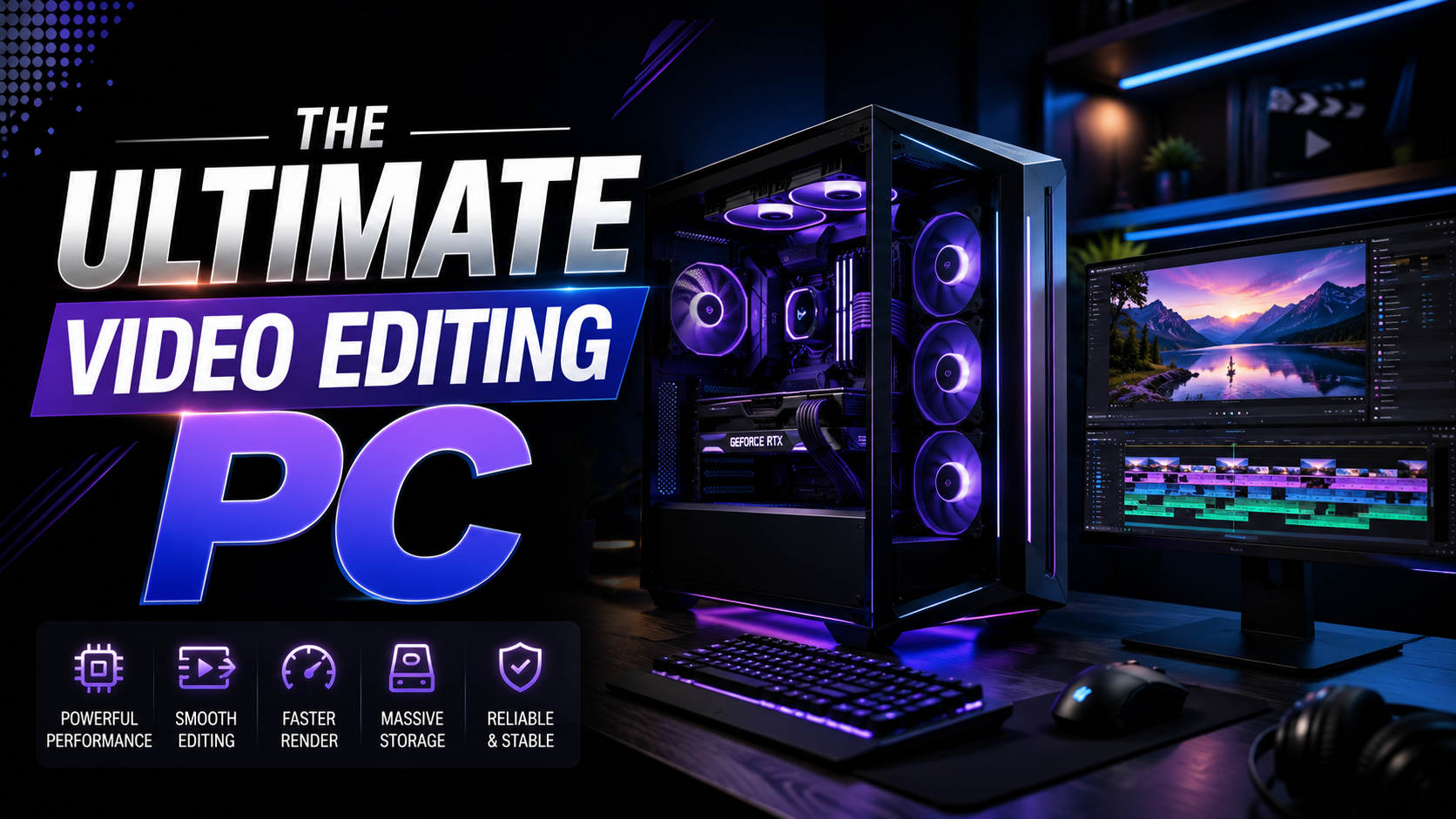

The Ultimate Video Editing PC Build Guide:
If you’ve ever watched a progress bar crawl across the screen while your footage exports, you already know the real cost of a weak machine — it’s not just time, it’s momentum. A choppy timeline or a five-minute export for a thirty-second clip will drain the creative energy out of any project. The good news? A solid video editing PC build doesn’t have to be complicated or wildly expensive once you understand which components actually matter.
This guide breaks down exactly what to prioritize — CPU, GPU, RAM, and storage — so you can build (or buy) a machine that handles 4K timelines, multi-layer projects, and long export queues without grinding to a halt.
Why Your Video Editing PC Build Matters More Than You Think:
Editing software behaves differently from gaming or everyday computing. Gaming builds chase peak frame rates in short bursts. Editing builds need sustained performance — decoding multiple video streams, rendering effects in real time, and exporting for extended periods without overheating or slowing down. Get the balance wrong, and you’ll feel it in every scrub, cut, and export.
CPU: The Brain of Your Video Editing Computer:
The processor handles decoding, encoding, and running your editing software, which makes it one of the two most important parts of your build (the other being the GPU).
What to Look For
- Core count matters for multi-layer timelines and effects-heavy projects. Aim for at least 8–12 cores for most 4K work.
- Both AMD and Intel make excellent options right now. A Ryzen 9-class chip or an Intel Ultra 9-class chip will comfortably handle serious editing workloads, while mid-range 8-core chips are plenty for lighter 1080p or casual 4K editing.
- Clock speed still counts. Editing software often relies on single-core performance for certain tasks, so don’t sacrifice speed entirely for core count.
GPU: Why It’s Not Just for Gamers:
A dedicated graphics card accelerates color grading, effects previews, and export encoding in nearly every modern editing program, including Premiere Pro and DaVinci Resolve.
VRAM Is the Number That Actually Matters
For 4K editing, aim for a GPU with at least 8–12GB of VRAM. If you’re working with heavy color grading, multiple 4K streams, or motion graphics, pushing toward 16GB gives you more headroom. Integrated graphics can technically run editing software, but they’ll bottleneck you fast once timelines get complex.
RAM: How Much Do You Really Need?
For most single-editor 4K workflows, 32GB of RAM is the sweet spot in 2026. It’s enough to keep your timeline responsive while running your editing app alongside browser tabs, media managers, and plugins.
When to Go Higher
Push to 64GB if you:
- Run multiple heavy applications simultaneously (like Premiere Pro and After Effects at once)
- Work with large multi-layer projects or high-resolution RAW footage
- Frequently multitask between color grading and audio mixing tools
Storage: Speed Beats Size (But You Need Both):
Slow storage is a silent killer of editing performance. A single fast NVMe SSD should be your primary drive for your OS and active project files — mechanical hard drives are simply too slow for smooth 4K playback and scrubbing.
A Practical Storage Setup
- Primary NVMe SSD for your operating system and editing software (500GB–1TB)
- Secondary NVMe or SATA SSD for active project files and footage you’re actively cutting
- External or network storage for archiving finished projects and older footage
This tiered approach keeps your active workspace fast without forcing you to buy a massive, expensive primary drive.
Power Supply and Cooling: The Parts People Forget:
A properly rated power supply keeps your system stable under the sustained loads that video editing creates. Calculate your components’ total wattage and add a buffer — most high-end editing builds should sit at 750W or higher, especially with a strong GPU installed.
Cooling matters just as much. Editing pushes your CPU and GPU at high load for long stretches during exports, which generates far more sustained heat than typical gaming sessions. This is also why laptops, despite impressive spec sheets, often underperform their desktop equivalents — sustained heat limits sustained speed.
Desktop vs. Laptop: Which Should You Build?
If you can, a desktop video editing PC build gives you better cooling, easier upgrades, and more raw power per dollar. Laptops make sense if you need to edit on location or travel frequently, but expect to pay more for comparable sustained performance, and keep an eye on thermal throttling during long export sessions.
[Internal linking opportunity: link to a related post on “video editing career” or “best laptops for video editing on a budget” if available on your site.]
Budget Tiers: Matching Your Build to Your Footage:
Rather than chasing exact prices that shift constantly, think in tiers based on what you actually shoot:
- Light 1080p/4K tier: 8–12 core CPU, GPU with 8–12GB VRAM, 32GB RAM, single fast NVMe drive
- Serious 4K tier: 12+ core CPU, GPU with 12–16GB VRAM, 32–64GB RAM, dual NVMe setup
- Heavy multi-stream or motion graphics tier: Top-tier CPU, GPU with 16GB+ VRAM, 64GB RAM, expandable storage
Frequently Asked Questions:
What specs do I need for a good video editing PC build? At minimum, aim for an 8-core CPU, a GPU with 8GB or more VRAM, 32GB of RAM, and a fast NVMe SSD. This combination handles most 4K editing comfortably.
Is 16GB of RAM enough for video editing? It can handle light 1080p editing, but 32GB is the realistic starting point for 4K work and modern editing software, which tends to be memory-hungry.
Do I need a separate graphics card for video editing? Yes, for anything beyond basic 1080p cuts. A dedicated GPU accelerates rendering, color grading, and exports significantly compared to integrated graphics.
Should I build my own PC or buy a pre-built one? Building your own typically saves money and lets you choose exactly the components you need. Pre-built systems are worth it if you want convenience and don’t want to manage compatibility between parts yourself.
How much should I budget for a video editing PC build? It depends heavily on your footage type and workload, but the tiered approach above lets you match your budget to what you actually shoot rather than overspending on specs you won’t use.
Ready to Build Your Video Editing PC?
A great video editing PC build comes down to balance, not brand names or flashy marketing. Prioritize your CPU and GPU first, give yourself enough RAM to breathe, and don’t skimp on storage speed. Get those fundamentals right, and you’ll spend your time creating instead of waiting on a progress bar.
If you’re ready to move forward, start by listing your typical footage resolution and project length — that single detail will tell you exactly which tier of build actually fits your workflow.
Leave a Reply