

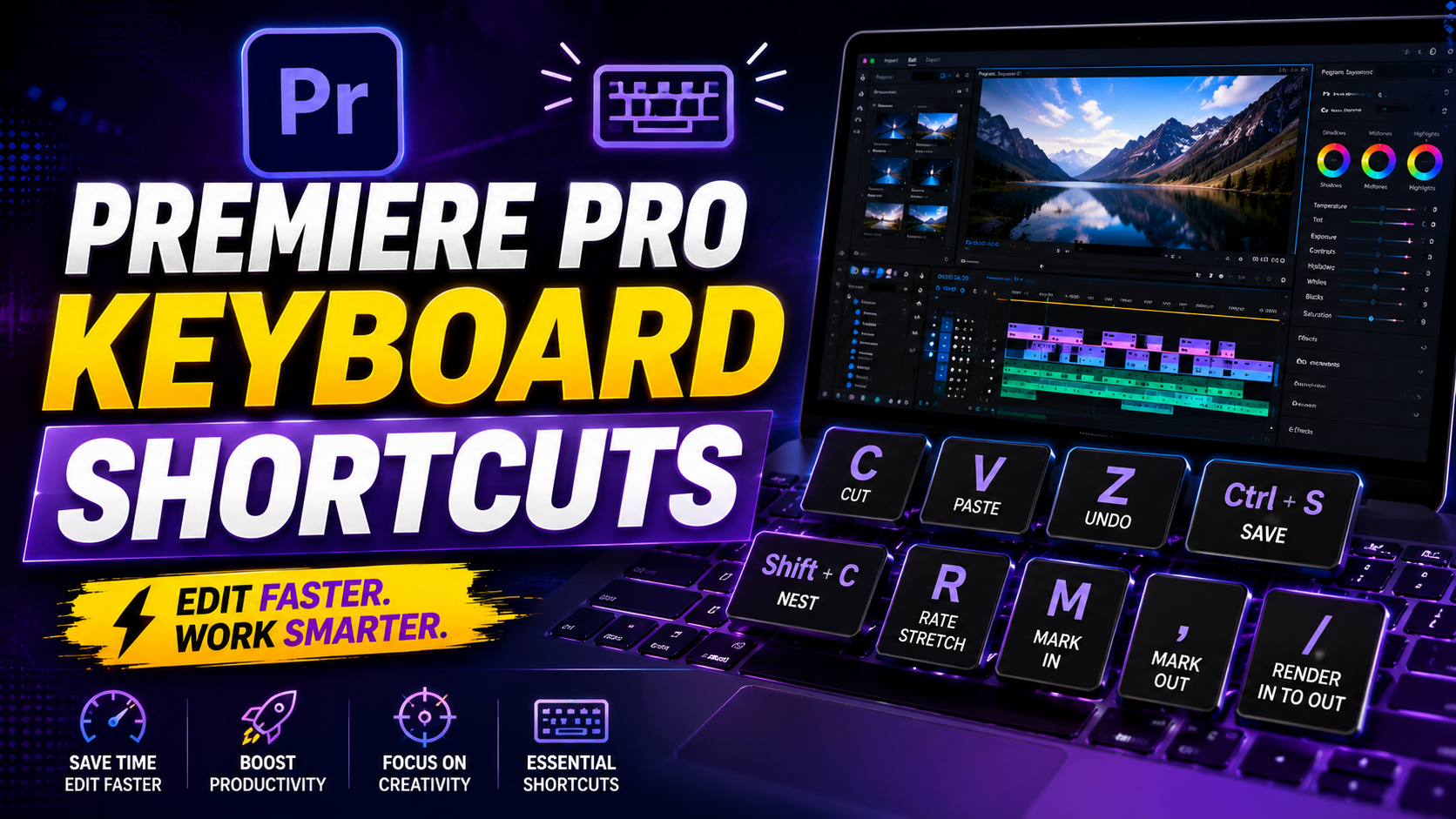

Premiere Pro Keyboard Shortcuts 2026:
If you’re still reaching for your mouse every time you need to cut, trim, or scrub through a timeline, you’re leaving a lot of time on the table. Editors who rely on Premiere Pro keyboard shortcuts consistently work two to three times faster than those who don’t — and the difference shows up the moment you’re racing a client deadline.
This guide breaks down the shortcuts that actually matter in 2026, organized by what you’re doing: editing, trimming, playback, and exporting. Whether you’re on Windows or Mac, new to Premiere Pro, or just tired of hunting through menus, you’ll walk away with a practical cheat sheet you can start using today.
Why Keyboard Shortcuts Matter More Than Ever in 2026:
Premiere Pro has grown more powerful with every update, but more features also mean more menus. The fastest editors aren’t necessarily the most talented — they’re the ones who’ve removed friction from their workflow. Learning even 15-20 core shortcuts can shave hours off a typical editing session.
There’s also a physical benefit. Constant mouse use strains your wrist over long sessions, while keyboard-based editing distributes that effort and keeps your hands closer to your keys, ready for the next cut.
Essential Premiere Pro Keyboard Shortcuts for Editing:
These are the shortcuts you’ll use in nearly every single project.
Basic Timeline Editing
| Action | Windows | Mac |
|---|---|---|
| Cut (Razor Tool) | C | C |
| Select Tool | V | V |
| Ripple Delete | Shift + Delete | Shift + Delete |
| Insert Clip | , (comma) | , (comma) |
| Overwrite Clip | . (period) | . (period) |
| Undo | Ctrl + Z | Cmd + Z |
| Redo | Ctrl + Shift + Z | Cmd + Shift + Z |
Marking and Trimming:
Trimming is where most editing time gets spent, so these shortcuts pay off fast.
- I — Set In Point
- O — Set Out Point
- Q — Trim clip start to playhead (Ripple Trim)
- W — Trim clip end to playhead (Ripple Trim)
- X — Extend selected edit to playhead
Once these become muscle memory, you’ll rarely touch the trim handles with your mouse again.
Playback and Navigation Shortcuts You’ll Use Constantly:
Getting around your timeline quickly is just as important as the cuts themselves.
- Spacebar — Play/Pause
- J / K / L — Reverse / Pause / Forward (press J or L multiple times to speed up playback)
- Left / Right Arrow — Move one frame back/forward
- Shift + Left/Right Arrow — Jump five frames
- Home / End — Jump to start/end of timeline
- Up / Down Arrow — Jump to next/previous edit point
The J-K-L combo alone is worth learning first — it’s the single biggest upgrade from mouse-based scrubbing.
Multi-Track and Selection Shortcuts:
When your project has several video and audio tracks, these shortcuts keep you organized.
Track and Clip Selection:
- A — Track Select Forward Tool
- Shift + A — Track Select Backward Tool
- Ctrl/Cmd + Click — Select multiple non-adjacent clips
- Ctrl/Cmd + A — Select all clips in the active sequence
Linking and Grouping:
- Ctrl/Cmd + G — Group selected clips
- Ctrl/Cmd + Shift + G — Ungroup clips
- Shift + L — Toggle link between audio and video clips
Text, Titles, and Effects Shortcuts:
Premiere Pro’s 2026 updates leaned heavily into faster text and graphics workflows, so these shortcuts are worth prioritizing.
- Ctrl/Cmd + T — New Text Layer
- Shift + E — Apply default video transition
- Ctrl/Cmd + D — Apply default video transition to selected edit
- Ctrl/Cmd + Shift + D — Apply default audio transition
If you build lower thirds or captions often, setting a custom shortcut for your most-used graphic template (via Edit > Keyboard Shortcuts) is a small tweak that saves real time.
Exporting and Project Management Shortcuts:
Getting your file out the door matters just as much as editing it.
- Ctrl/Cmd + M — Open Export Settings
- Ctrl/Cmd + S — Save Project
- Ctrl/Cmd + Shift + S — Save As
- Ctrl/Cmd + I — Import Media
Pro tip: enable auto-save (Edit > Preferences > Auto Save) so Ctrl/Cmd + S becomes a habit rather than a necessity.
Must explore: Default keyboard shortcuts
How to Customize Your Own Premiere Pro Shortcuts:
Everyone edits differently, and Premiere Pro lets you build a keyboard layout around your own habits.
- Go to Edit > Keyboard Shortcuts (Windows) or Premiere Pro > Keyboard Shortcuts (Mac)
- Search for the command you want to remap
- Click the current shortcut field and press your new key combination
- Save your layout as a custom preset so it travels with you between machines
This is especially useful if you’re switching from another editor like DaVinci Resolve or Final Cut Pro and want a familiar layout.
Must Read: Adobe Premiere Pro Keyboard Shortcuts (2026)
Frequently Asked Questions:
What is the fastest way to learn Premiere Pro keyboard shortcuts? Start with five shortcuts a week rather than trying to memorize the entire list at once. Focus on J-K-L playback, I/O for in/out points, and C/V for cutting and selecting — these alone cover most day-to-day editing.
Are Premiere Pro shortcuts the same on Windows and Mac? Most are identical except that Ctrl becomes Cmd on Mac. A handful of shortcuts differ slightly due to operating system conflicts, so it’s worth checking Adobe’s official shortcut list if something doesn’t respond as expected.
Can I print a Premiere Pro shortcuts cheat sheet? Yes. Adobe offers a downloadable, printable keyboard shortcuts reference inside the Keyboard Shortcuts panel, and many editors keep a printed copy near their desk while they’re still building muscle memory.
Do keyboard shortcuts work differently in different Premiere Pro versions? Core shortcuts have stayed consistent for years, but new features occasionally introduce new default shortcuts. Always check Edit > Keyboard Shortcuts after a major update to see what’s new.
What’s the single most useful shortcut for beginners? J-K-L for playback control. It replaces slow, imprecise mouse scrubbing with fast, adjustable-speed navigation and is the fastest way to feel like a professional editor.
Final Thoughts:
Speed in Premiere Pro isn’t about talent — it’s about removing unnecessary clicks from your workflow. Start with the core editing and playback shortcuts in this guide, build up to trimming and multi-track shortcuts, and customize your own layout once you know what you reach for most. Bookmark this page as your go-to Premiere Pro keyboard shortcuts cheat sheet, and give yourself a week of deliberate practice — you’ll notice the difference in your editing speed almost immediately.
Ready to level up your editing workflow? Try applying three new shortcuts from this list in your very next project and see how much time you save.
Leave a Reply