

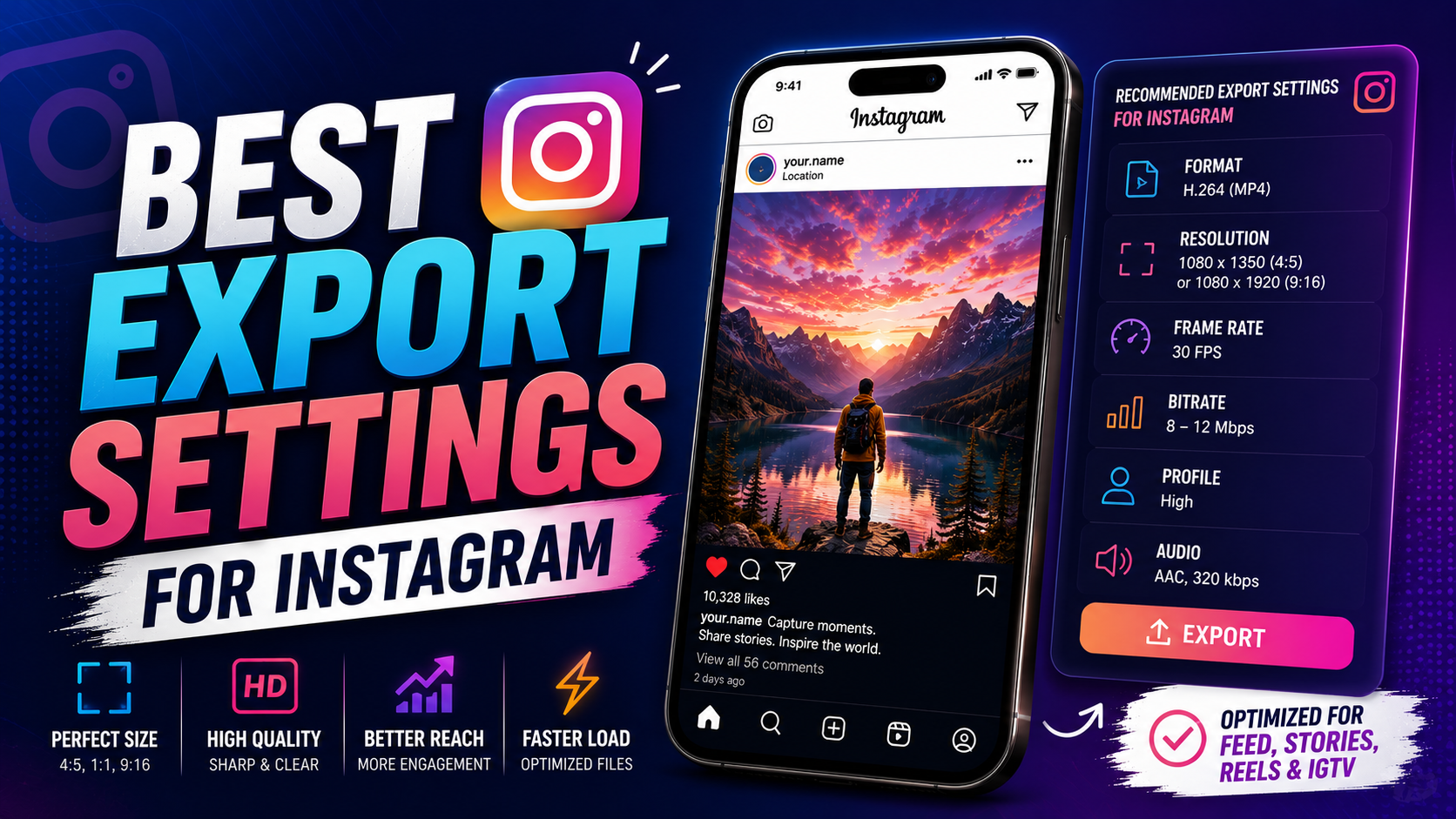

Best Export Settings for Instagram in 2026:
Best export settings for Instagram: You edited your video, it looked crisp on your timeline, and then Instagram turned it into a soft, cropped, slightly blurry version of what you actually made. If that sounds familiar, the issue almost certainly isn’t your camera or your editing skills — it’s your export settings not matching what Instagram actually expects.

Instagram isn’t one single format. Reels, feed posts, and Stories each have their own aspect ratio, resolution, and compression behavior, and exporting the wrong way for the wrong placement is the single biggest reason content looks worse after upload. This guide walks through the best export settings for Instagram in 2026, broken down by placement, so your videos arrive looking the way you intended.
Best Export Settings for Instagram: The Quick Answer:
For most Instagram content in 2026, use 1080×1920 resolution at a 9:16 aspect ratio, 30fps, MP4 container, H.264 codec, a bitrate between 5,000–10,000 kbps, and AAC audio at 256 kbps and 48kHz. This combination covers Reels and Stories, which together make up the majority of what people watch on the platform, and gives Instagram’s compression system a clean, well-supported file to work with.
Instagram Reels Export Settings:
Reels are the priority format on Instagram, and Meta has confirmed they account for over half of all time spent on the app, so getting this one right matters most.
Resolution and Aspect Ratio for Reels:
Reels are built around a vertical 9:16 frame at 1080×1920 pixels. This isn’t a suggestion — it’s the shape Instagram’s Reels player is designed for. Uploading landscape or square footage into a Reel results in black bars (letterboxing or pillarboxing) that shrink your visible frame and immediately signal that a video wasn’t made for the platform.
Frame Rate and Bitrate for Reels
Export Reels at 30fps unless your footage was shot cleanly at 60fps and there’s a specific reason to preserve that motion. Exporting a 30fps source at 60fps doesn’t add real detail — it just creates duplicate frames that give Instagram more data to compress without any visible quality benefit.
For bitrate, aim for 5,000–10,000 kbps. This range balances sharp detail against file size, and going far beyond it won’t meaningfully improve quality once Instagram’s own compression takes over.
Reels Safe Zones:
Instagram overlays UI elements like the caption, username, and action buttons over roughly the top and bottom 10–15% of the frame. Keep important text, logos, and calls-to-action inside the central safe zone, or they’ll end up hidden behind the interface.
Instagram Feed Video Export Settings
Feed posts behave differently from Reels, even when using the same source footage.
Best Aspect Ratio for Feed Videos
For standard feed video posts, 4:5 at 1080×1350 pixels is generally the strongest choice. It takes up more vertical screen space than a square or landscape post without cropping into a full Reel-style frame, which helps it stand out while scrolling.
Exporting a Reel for the Feed (and Vice Versa):
If you’re repurposing a 9:16 Reel for a feed post, don’t assume it will look right automatically — Instagram crops Reels to 4:5 for feed placement, trimming the top and bottom of the original frame. If your text or subject sits near the edges of a 9:16 export, it may get cut off once it’s reformatted for feed. When repurposing footage across placements, it’s safest to reframe deliberately rather than relying on automatic cropping.
Instagram Stories Export Settings:
Stories share the same technical specs as Reels — 9:16 at 1080×1920 pixels, MP4, H.264 — but with one key difference: Stories are viewed for a much shorter window, so front-loading your message in the first second or two matters more than production polish.
Codec, Container, and Audio Settings for Instagram
Format and Codec
Stick with an MP4 container and H.264 codec across all Instagram placements. It’s the most universally supported combination, processes quickly, and matches what nearly every editing tool exports by default.
Audio Settings:
Use AAC audio at 256 kbps, 48kHz sample rate. Instagram content is frequently watched with sound off, but a meaningful share of viewers do watch with audio on, and clean audio still affects watch time and completion rate even when captions are doing most of the work.
Color Space:
Always export in sRGB, not CMYK. Instagram converts CMYK files automatically, but the conversion can visibly shift your brand colors, which is a common and easily avoidable mistake.
Common Instagram Export Mistakes to Avoid
Uploading landscape or square footage into Reels, resulting in black bars and a shrunken viewing area
Placing text or logos too close to the top or bottom edge, where Instagram’s UI covers it
Assuming a 9:16 Reel will look identical when cropped for feed, without checking framing first
Exporting at 60fps from 30fps source footage, inflating file size with no real quality gain
Exporting in CMYK, causing unexpected color shifts after upload
Avoiding just these five issues resolves the majority of quality complaints creators run into after posting.
Read more: How to upload high-quality videos from Edits to Instagram
Read more: Best Export Settings for YouTube
Frequently Asked Questions:
What is the best resolution for Instagram Reels in 2026? The best resolution for Instagram Reels is 1080×1920 pixels at a 9:16 aspect ratio. This is the native full-screen format Instagram’s Reels player is built around.
What bitrate should I use for Instagram video exports? A bitrate between 5,000 and 10,000 kbps works well for Reels and Stories. Going higher rarely improves visible quality, since Instagram compresses every upload after it’s received.
Should I export Instagram videos at 30fps or 60fps? Export at 30fps unless your footage was originally shot at 60fps. Converting a 30fps source up to 60fps just duplicates frames, adding file size without any real improvement in quality.
Why does my Instagram video look blurry after uploading? This usually comes down to one of a few things: uploading the wrong aspect ratio, using a bitrate that’s too low for the resolution, or exporting from a low-quality source file. Matching the specs in this guide resolves most quality loss.
Is the aspect ratio different for Instagram feed posts versus Reels? Yes. Reels and Stories use a 9:16 vertical frame, while standard feed video posts typically perform best at 4:5. Using the wrong ratio for the wrong placement is one of the most common causes of cropped or letterboxed video.
Final Thoughts:
Getting your Instagram exports right isn’t about complicated settings — it’s about matching the right aspect ratio, resolution, and bitrate to the placement you’re actually posting to. Use 9:16 at 1080×1920 for Reels and Stories, 4:5 for feed video, keep your bitrate in the 5,000–10,000 kbps range, and export in sRGB to protect your colors. Set these once as a saved preset in your editing software, and you’ll never have to second-guess an upload again.
Ready to clean up your export workflow? Open your editor’s export settings now, save separate presets for Reels and feed posts using the numbers above, and use them for every Instagram upload going forward.
Leave a Reply