

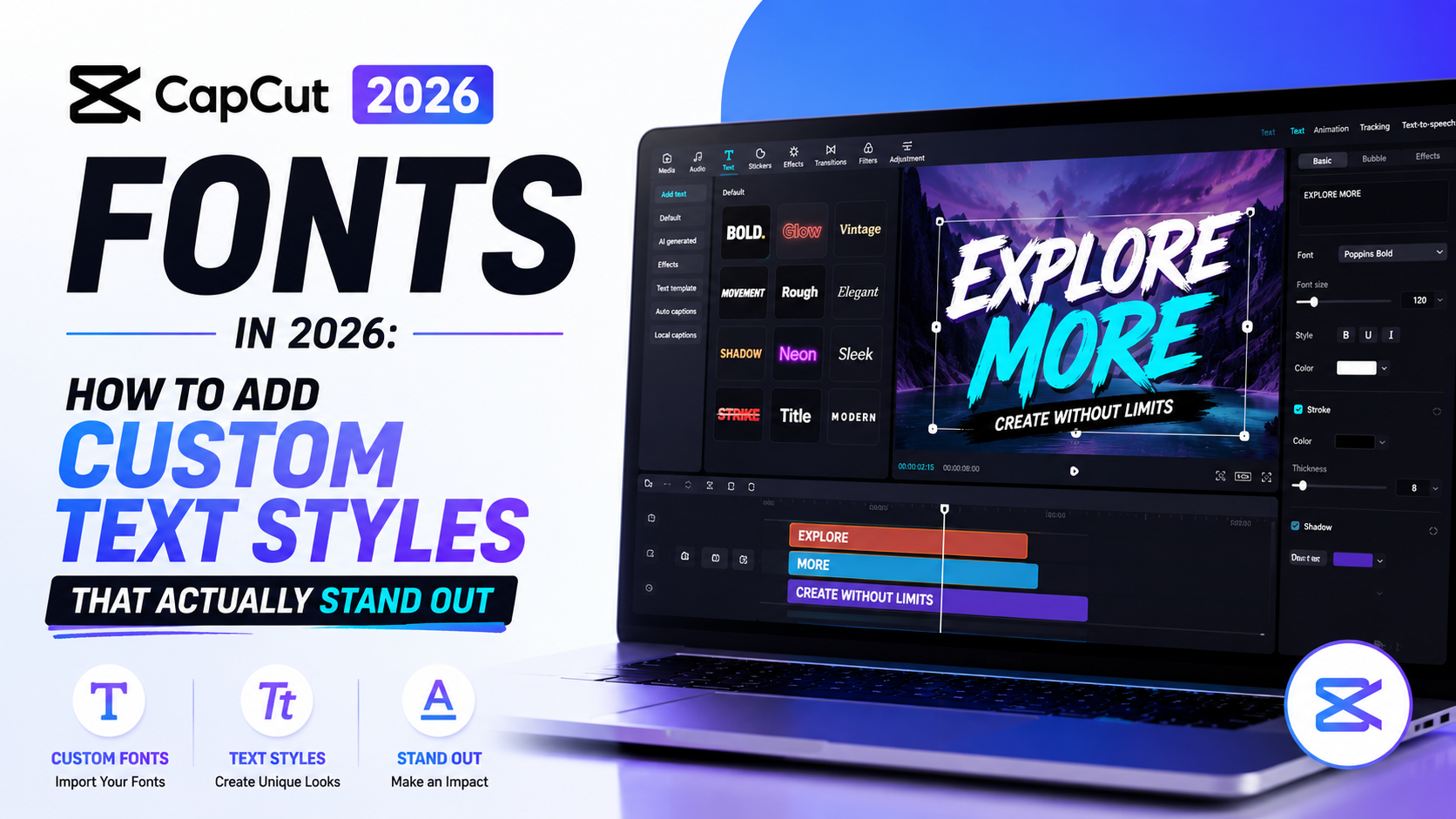

CapCut Fonts in 2026: How to Add Custom Text Styles That Actually Stand Out:
Capcut fonts: Scroll through any TikTok or Reels feed for five minutes and you’ll notice something: half the videos use the exact same default font. It’s not that creators don’t care about typography, it’s that most people don’t realize how easy it is to bring in a custom font that actually matches their content’s vibe instead of blending in with everyone else’s.
This guide covers everything you need to know about CapCut fonts in 2026, from using the built-in library to importing your own custom typefaces on mobile and desktop, plus how to fix the most common upload errors people run into along the way.
What Fonts Come Built Into CapCut?
CapCut ships with a solid library of default fonts covering bold display styles, clean sans-serifs, handwritten scripts, and stylized display fonts often used for meme-style captions. These built-in options work fine for quick edits, but since every CapCut user has access to the same library, relying on them exclusively makes your content harder to visually distinguish from everyone else’s.
That’s where custom fonts come in, and CapCut’s import process is more accessible than most people expect.
How to Add Custom Fonts to CapCut on Mobile:
Step 1: Find and Download a Font File
Sites like DaFont and Google Fonts offer free typefaces in TTF or OTF format, which are the file types CapCut recognizes most reliably. Download the font file to your phone before opening the app.
Step 2: Open the Text Panel in CapCut
Inside your project, tap “Text,” then “Add Text,” and type out whatever you want styled.
Step 3: Import the Font File
Tap the font option in the text editing panel, then look for an “Add Font” or import icon (usually a plus sign). Select the font file you downloaded, and CapCut will add it directly to your project’s available fonts.
How to Add Custom Fonts to CapCut on PC:
Step 1: Download and Install the Font on Your Computer
After downloading a TTF or OTF font file, install it on your computer the same way you’d install any system font, then reopen CapCut so it can detect the update.
Step 2: Locate the Font Under System Fonts
Open the Text tab, drag a text box onto your timeline, and scroll through the font drop-down menu until you reach the “System Fonts” section. Your newly installed font should appear there automatically.
Step 3: Use Direct In-App Import (Newer Versions)
Some recent desktop builds also let you skip the system installation step entirely. Click the font drop-down, select “Import Font,” and drop the file directly into the app without installing it system-wide first.
Fixing Common CapCut Font Problems:
Font Not Showing Up After Import. This is usually a formatting issue. CapCut works most reliably with TTF and OTF files. If you downloaded a font in a different format, like WOFF, use a free online font converter to change it to TTF before trying again.
Font Looks Different Than Expected:
Some fonts include multiple weight variations (light, regular, bold) bundled as separate files. Make sure you’re importing the specific weight you actually want to use, since some font packs default to a thinner or heavier style than what’s shown in previews.
App Needs a Restart to Detect the Font:
On both mobile and desktop, newly installed fonts sometimes don’t appear until you fully close and reopen CapCut, rather than just restarting the current project.Best Types of Fonts for Different Video Styles
Bold Display Fonts for Hooks and TitlesThick, high-contrast fonts work well for opening hooks and titles that need to grab attention in the first second of a scroll.
Clean Sans-Serif Fonts for Captions:
Simple, legible fonts keep auto-generated captions readable without distracting from the footage itself, especially important for longer talking-head content.Handwritten or Script Fonts for Personal ContentThese add a casual, personal feel and work well for vlogs, diary-style content, or anything meant to feel less produced and more authentic.
Branded Fonts for Business Accounts:
If your brand has an established font used across your website and marketing materials, importing that exact typeface into CapCut keeps your video content visually consistent with everything else you publish.
Using CapCut’s AI Text Generator as a Font Alternative:
If you don’t have a specific custom font in mind, CapCut’s AI-generated text feature offers another route. Selecting “Text,” then “AI Generated,” lets you type in your text, choose a visual effect, and generate a styled text design without needing to source or import a font file at all. It’s a solid shortcut when you want something distinctive but don’t want to spend time hunting for the perfect typeface.
Frequently Asked Questions:
Can I use custom fonts in CapCut for free? Yes. CapCut allows font imports on both mobile and desktop at no extra cost, and free font resources like Google Fonts and DaFont provide plenty of options to choose from.
Why isn’t my custom font showing up in CapCut? This is usually caused by an unsupported file format. Converting the font to TTF or OTF format, then reimporting it, resolves most font display issues.
What font format works best with CapCut? TTF and OTF are the most reliable formats. If your font came in a different format, like WOFF, convert it before importing.
Can I add the same custom font across multiple CapCut projects? Yes, once a font is installed on your device (or imported directly through newer desktop versions), it typically remains available for future projects without needing to re-import it each time.
Does CapCut have an AI tool for generating text styles without a custom font? Yes. The “AI Generated” text option lets you create stylized text effects directly within the app, without needing to source or install a separate font file.
Grab this:
26 Best Fonts on CapCut for Stunning Video Edits
Final Thoughts for Capcut fonts:
A custom font is one of the simplest, lowest-effort upgrades you can make to your video content, and it makes a bigger visual difference than most people expect. Whether you’re building consistent brand content or just want your captions to stop looking identical to everyone else’s, CapCut’s font import process takes just a couple of minutes once you know where to look.
Try importing one custom font into your next project and compare it side by side with CapCut’s default text style. Once you see the difference, going back to the default library gets a lot harder.
Watch full video editing course: Video Editing Tutorials
Leave a Reply